Tunnel
Create a tunnel
To create and manage tunnels, you will need to install and authenticate cloudflared on your origin server. cloudflared is what connects your server to Cloudflare’s global network.
-
Log in to Zero Trust and go to Networks > Tunnels.
-
Select Create a tunnel.
-
Choose Cloudflared for the connector type and select Next.
-
Enter a name for your tunnel. We suggest choosing a name that reflects the type of resources you want to connect through this tunnel (for example, enterprise-VPC-01).
-
Select Save tunnel.
-
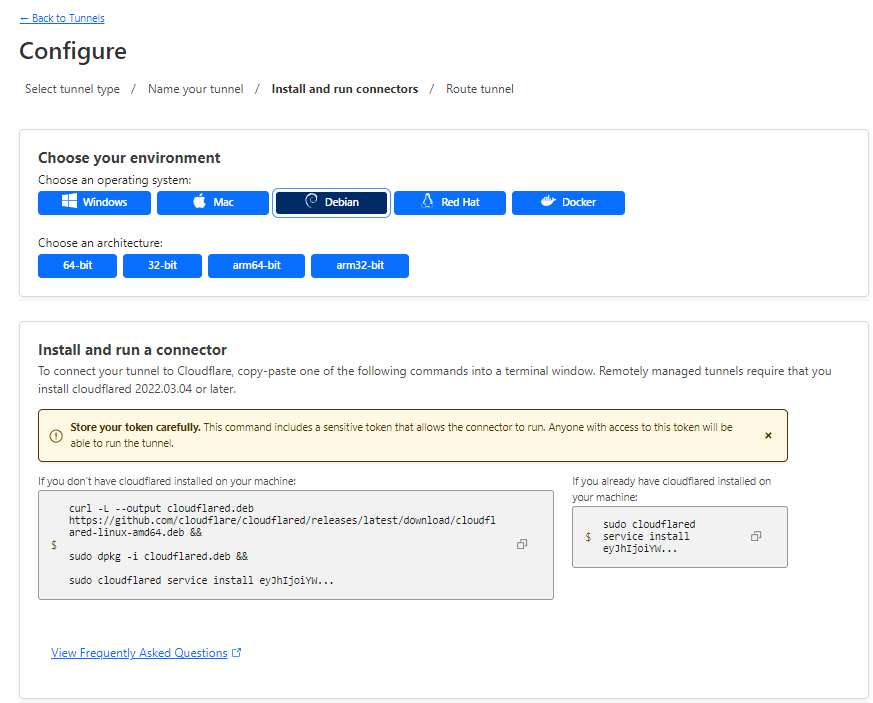
Next, you will need to install cloudflared and run it. To do so, check that the environment under Choose an environment reflects the operating system on your machine, then copy the command in the box below and paste it into a terminal window. Run the command.
-
Once the command has finished running, your connector will appear in Zero Trust.
- Select Next.
Connect an application
-
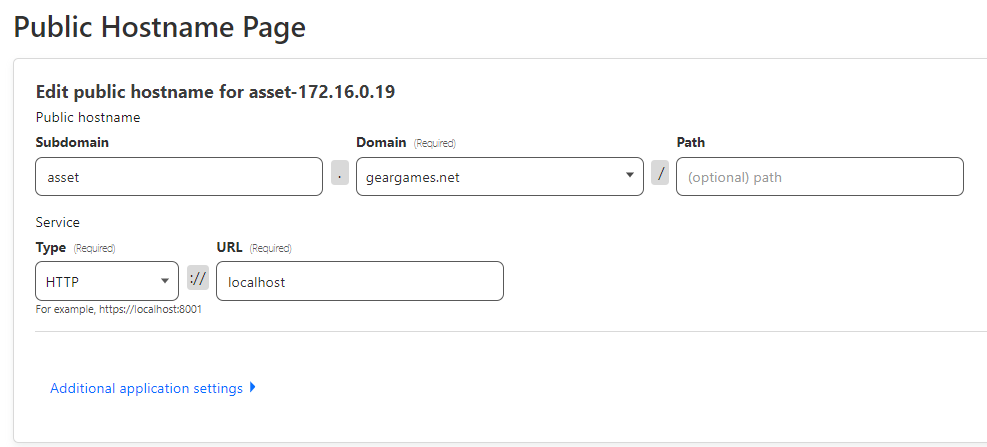
In the Public Hostnames tab, choose a Domain and specify any subdomain or path information.
-
Specify a service, for example http://localhost.
-
Under Additional application settings, specify any parameters you would like to add to your tunnel configuration.
-
Select Save tunnel.
View your tunnel
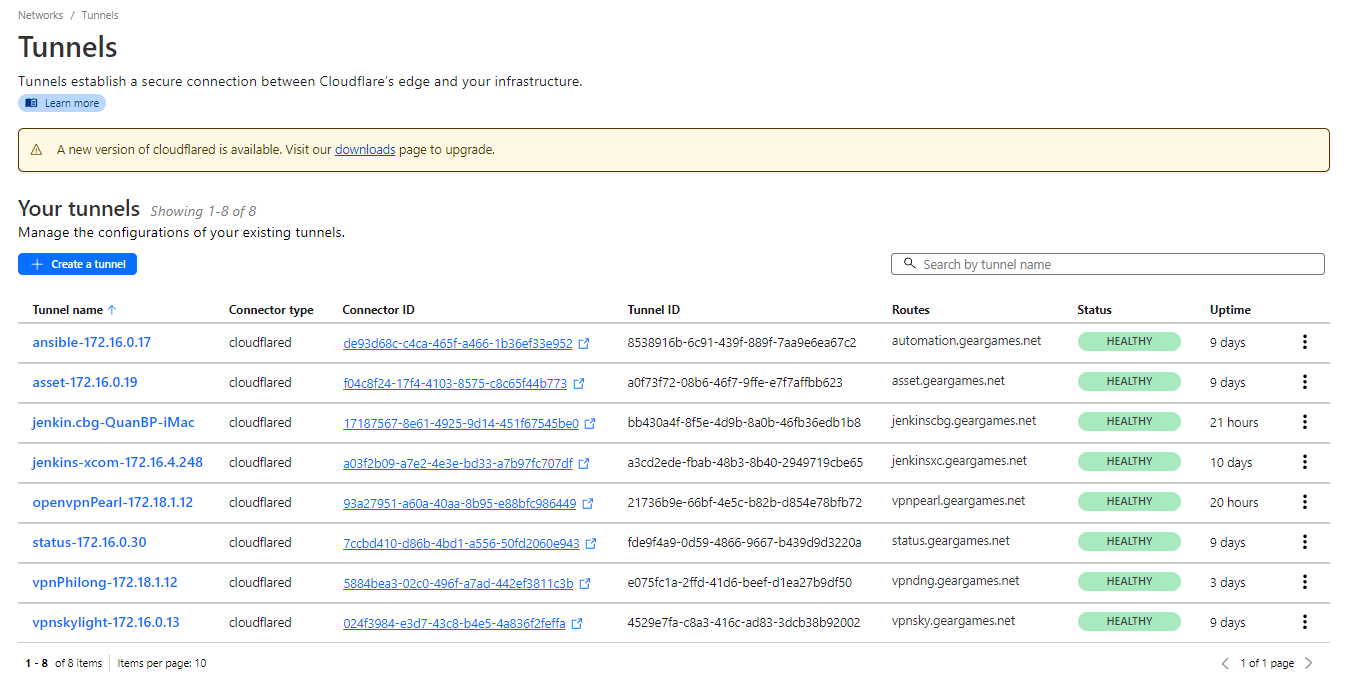
After saving the tunnel, you will be redirected to the Tunnels page. Look for your new tunnel to be listed along with its active connector.
Update your tunnel
If installed via apt:
- Update the
cloudflaredpackage:
sudo apt-get upgrade cloudflared
- Restart the service:
sudo systemctl restart cloudflared.service
If installed manually via dpkg -i:
You can check if cloudflared was installed by a package manager by running ls -la /usr/local/etc/cloudflared/ and looking for .installedFromPackageManager in the output.
- Update the cloudflared package:
curl --location --output cloudflared.deb https://github.com/cloudflare/cloudflared/releases/latest/download/cloudflared-linux-amd64.deb && sudo dpkg -i cloudflared.deb
- Restart the service:
sudo systemctl restart cloudflared.service
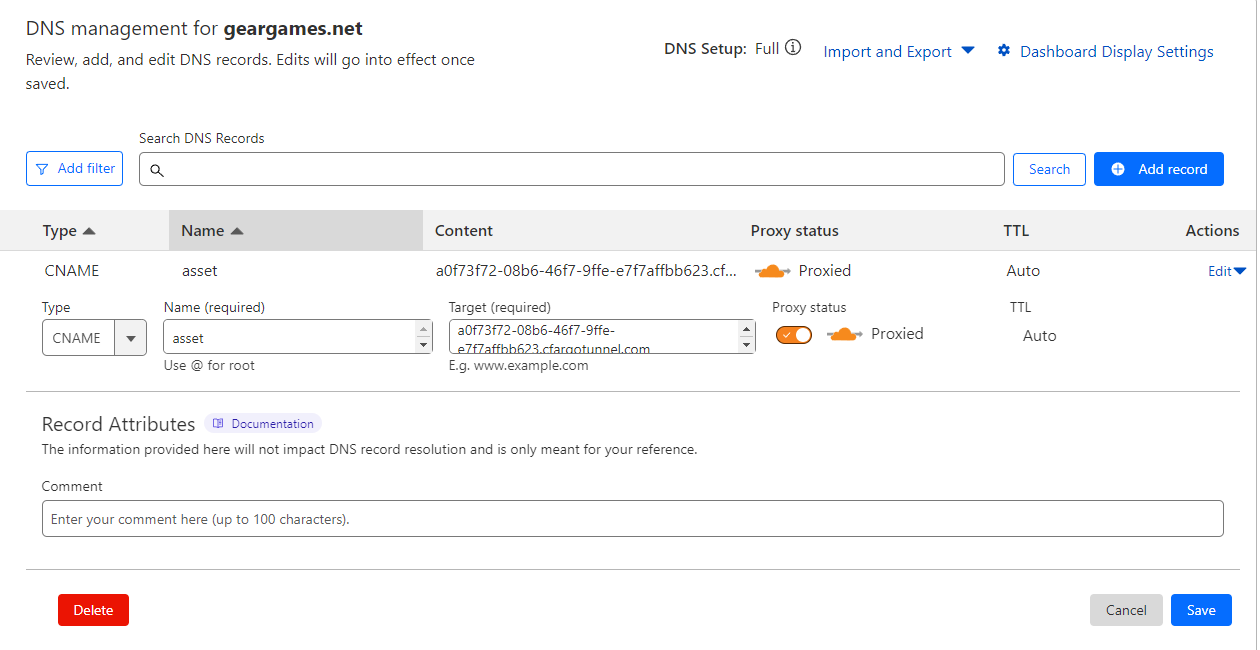
Create a DNS record for the tunnel
To create a new DNS record for your tunnel:
- Log in to the Cloudflare dashboard and select your account and domain.
- Go to DNS > Records.
- Select Add record.
- Input the following information:
- Type: CNAME
- Name: Subdomain of your application
- IPv4 address: <Tunnel-ID>.cfargotunnel.com
- Select Save.