Enroll GCPW for Windows
Google Credential Provider for Windows® (GCPW) lets users sign in to Windows® devices with the Google Account they use for work. GCPW provides users with a single sign-on experience to Google services and all the security features available with their Google Account. Learn more about GCPW
Setting up from the Google Console
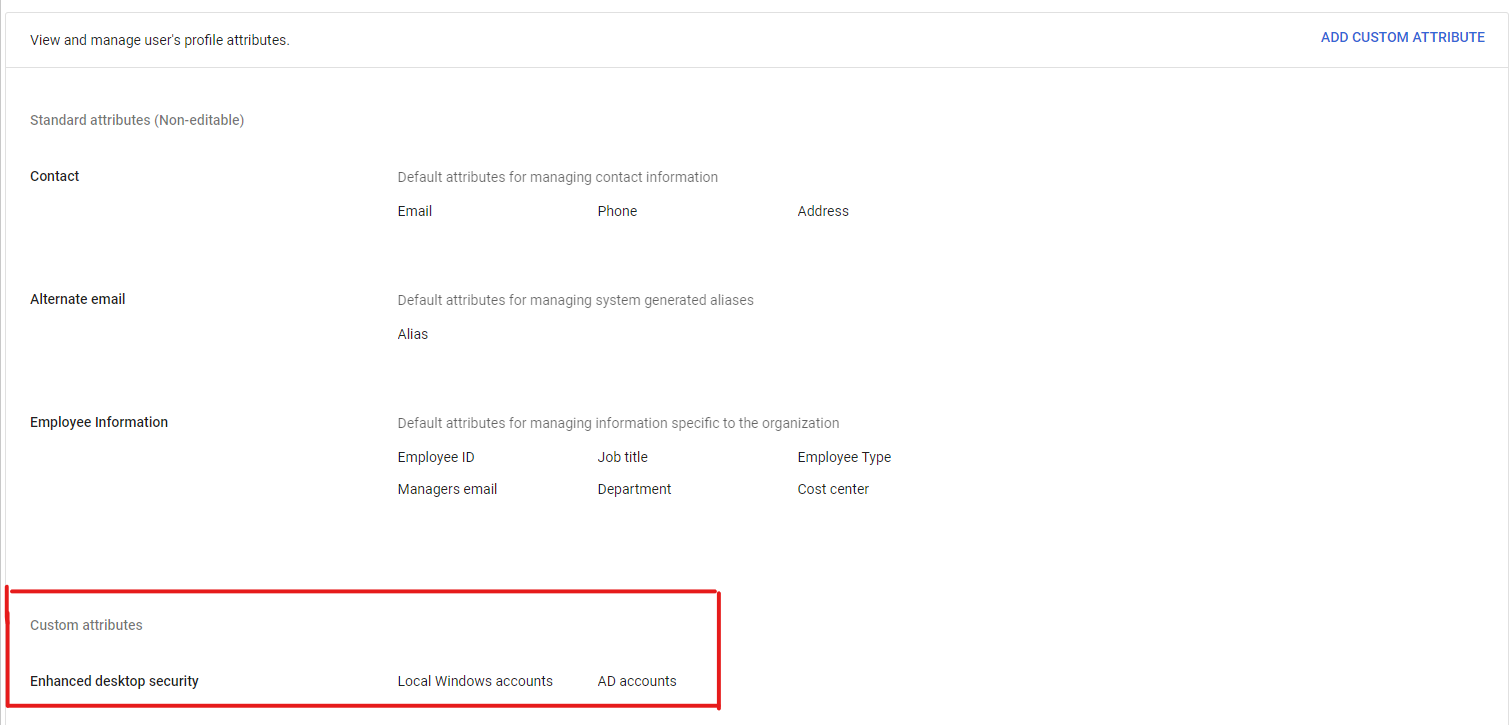
Adding custom fields for entering AD accounts and Local Windows accounts
tip
This is the initial setup and only needs to be done once during setup.
-
Visit the address https://admin.google.com/ac/customschema
-
Under ADD CUSTOM ATTRIBUTE, enter the following information:
Category: Enhanced desktop security
Custom fields
Name:  Local Windows accounts | Text | Visible to user and admin | Multi Value
Name:  AD accounts | Text | Visible to user and admin | Multi Value
Click Save
Setting up GCPW on Google Console
tip
This is the initial setup and only needs to be done once during setup.
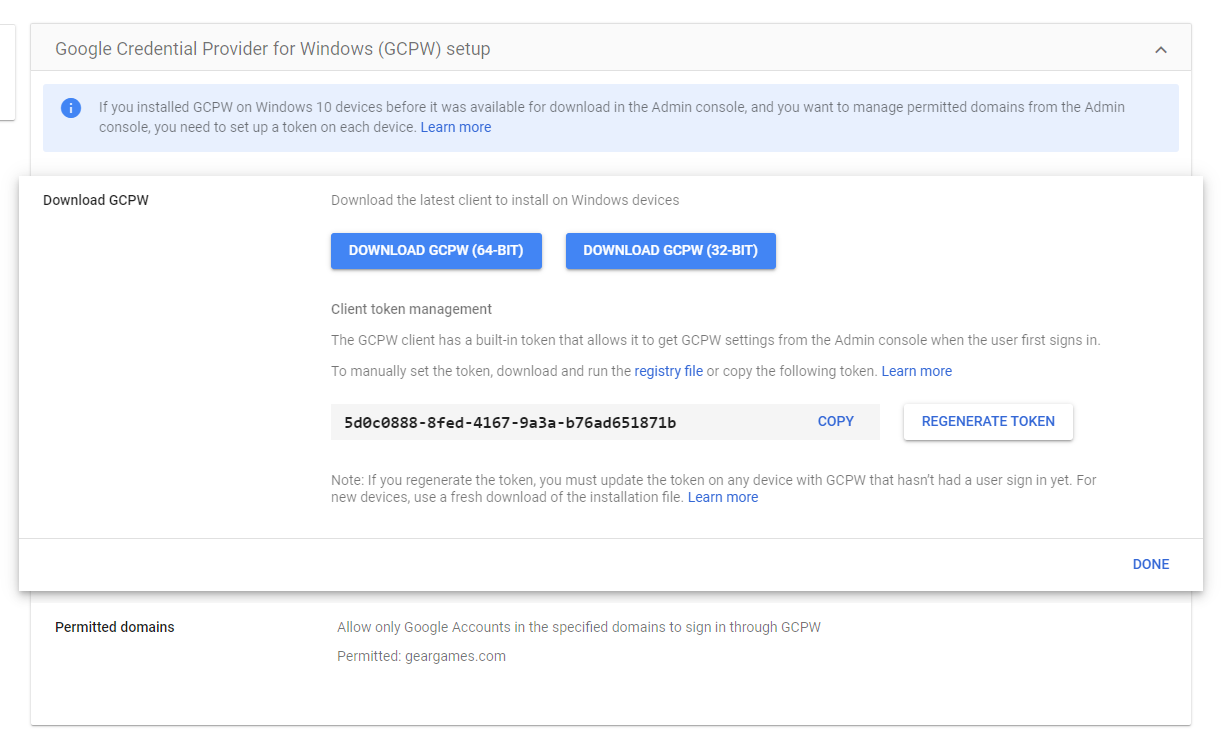
- Visit the address https://admin.google.com/ac/devices/windows/gcpwsetup
- In the Permitted domains field: geargames.com
- In the Download GCPW section: REGENERATE TOKEN
- Download and store the setup file on the internal network system
Setting up on a Windows computer
- Successfully join the Windows domain for the user
tip
Find the actual folder of the user after joining the domain and successfully creating a profile in the system,
- If the computer has never used Prowiz, the folder will typically be the user's Windows domain login username
- If the computer has previously used Prowiz, the folder may be sgs or gearinc
Setting up on Google Console
tip
This step is done each time for a new user and you need to contact with DoanVN or TuanHD or SyTD or MinhND
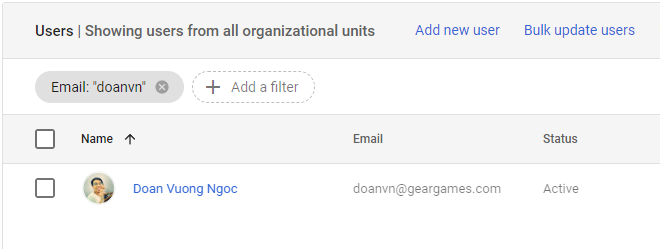
- Visit https://admin.google.com/ac/users and find the corresponding user to install GCPW
-
Click User Infomation and fill in the Enhanced desktop security section
-
Local Windows accounts: Enter the folder name found in the previous step
-
AD accounts: Enter in the format GEARHQ\usernamedomain
-
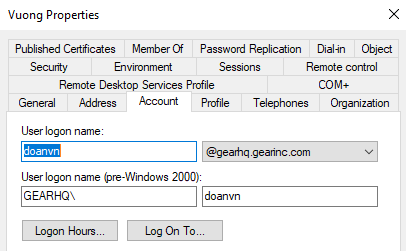
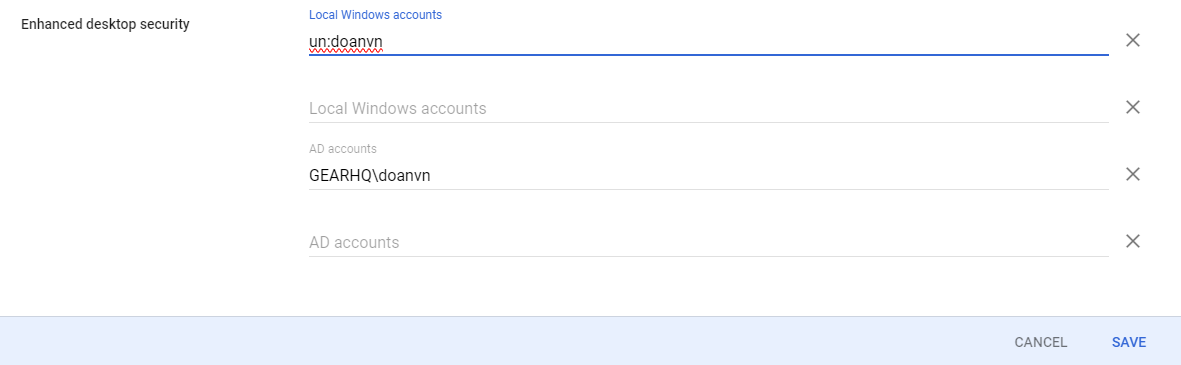
Setting up GCPW on the computer
- Log in to the computer with a Windows Domain account with administrative rights or at least Local Admin rights
- Install GCPW
- After installing GCPW, restart your computer to complete the integration with the system.
Login Screen:
- Select Other user.
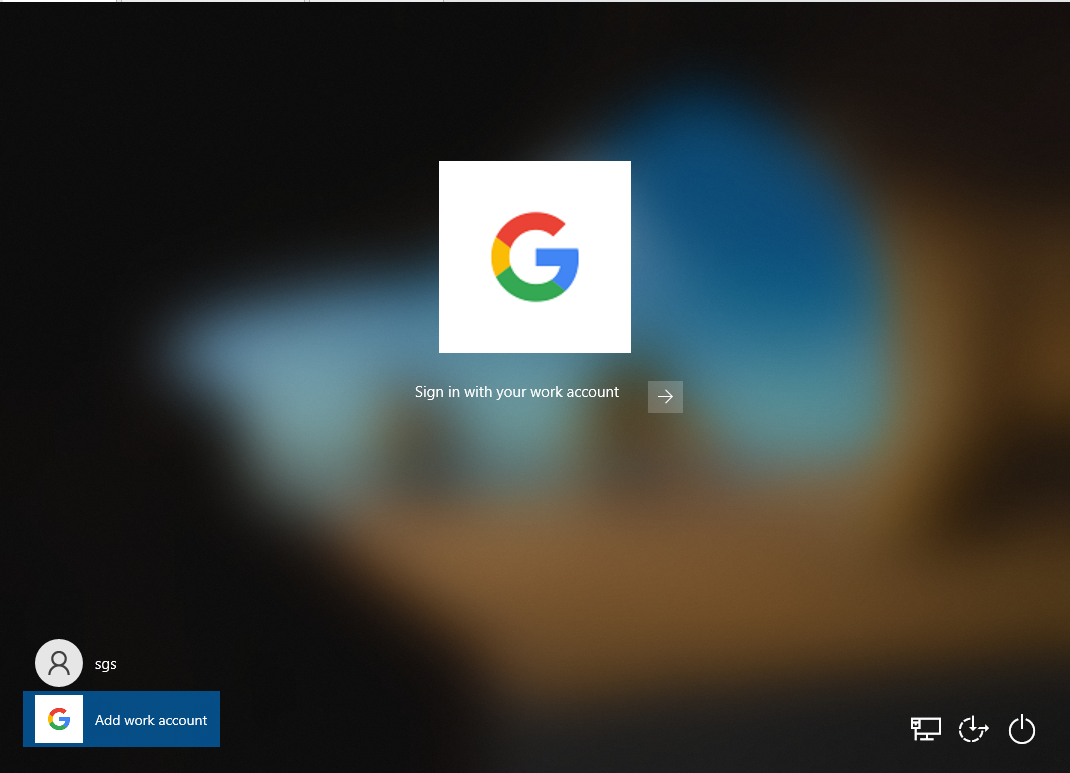
- Under Sign-in options, click Google.
- The Google login screen will appear. Enter your organizational email Username and Password.
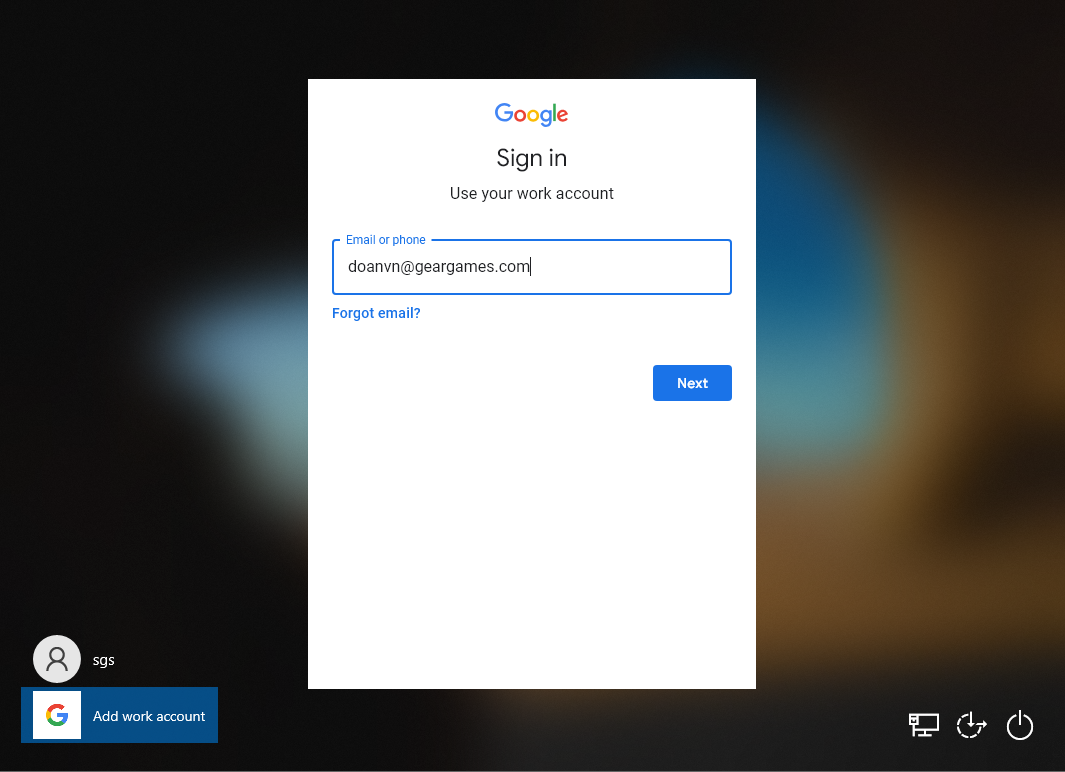
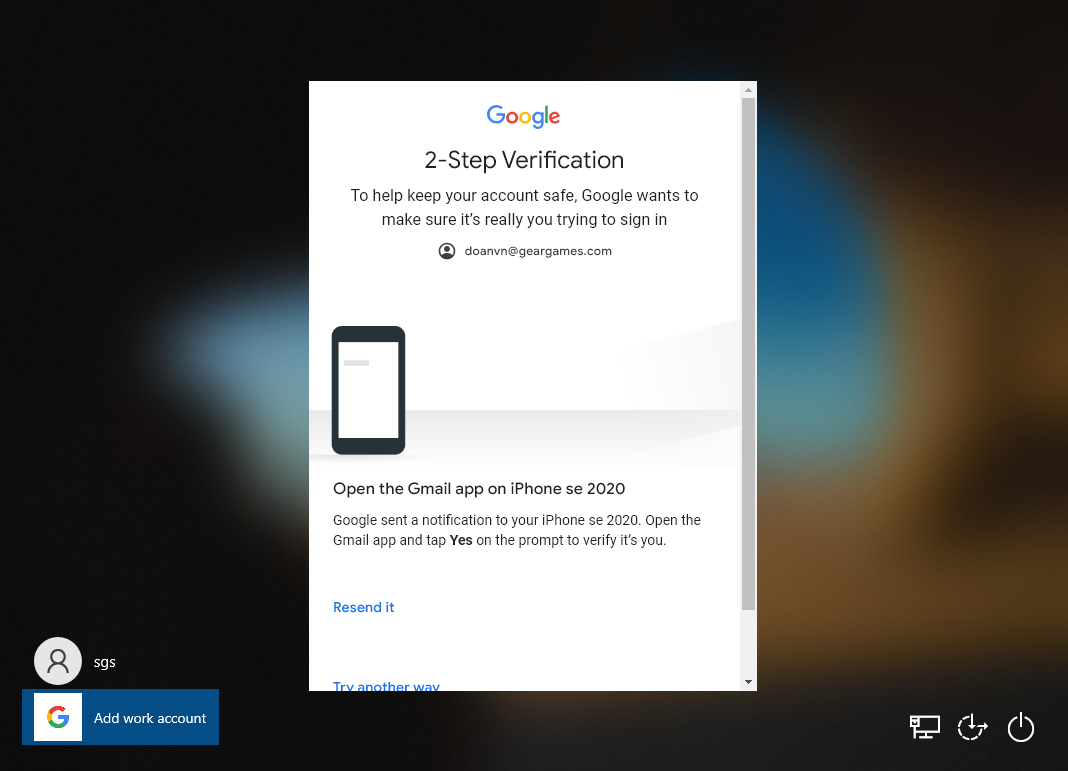
- After entering your credentials, Google will proceed with two-step verification. Please complete the verification process.
- Click I agree on the next screen.
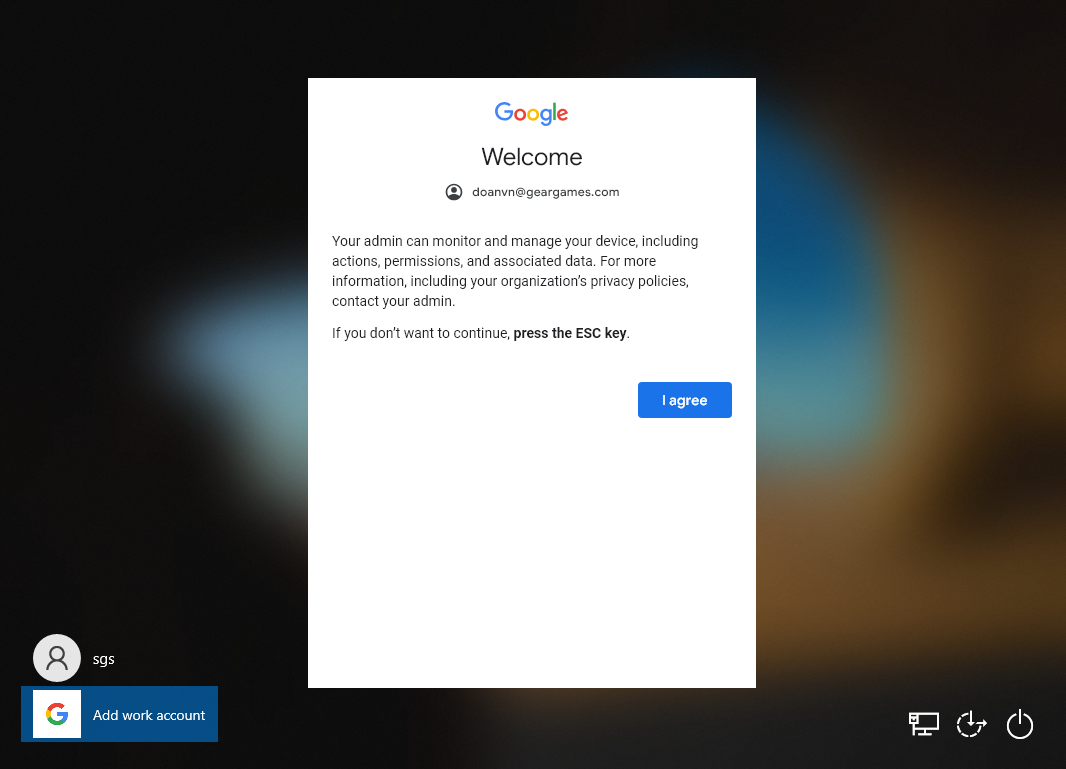
- Click Next and Finish to complete the process. You will be successfully logged into the system with your Google account.
- For the next logins, you can use your Google password to log in the password field