ESXi Installation
ESXi Installation
- Boot your server to ISO image. Choose ESXi 8.0 Installer.
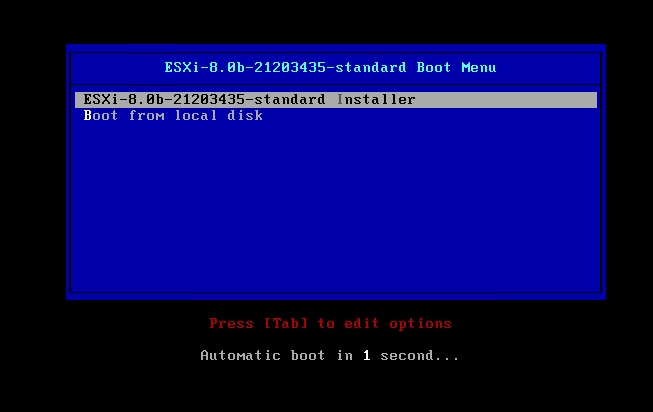
- CPU WORKAROUND. If your CPU is compatible SKIP THIS STEP.
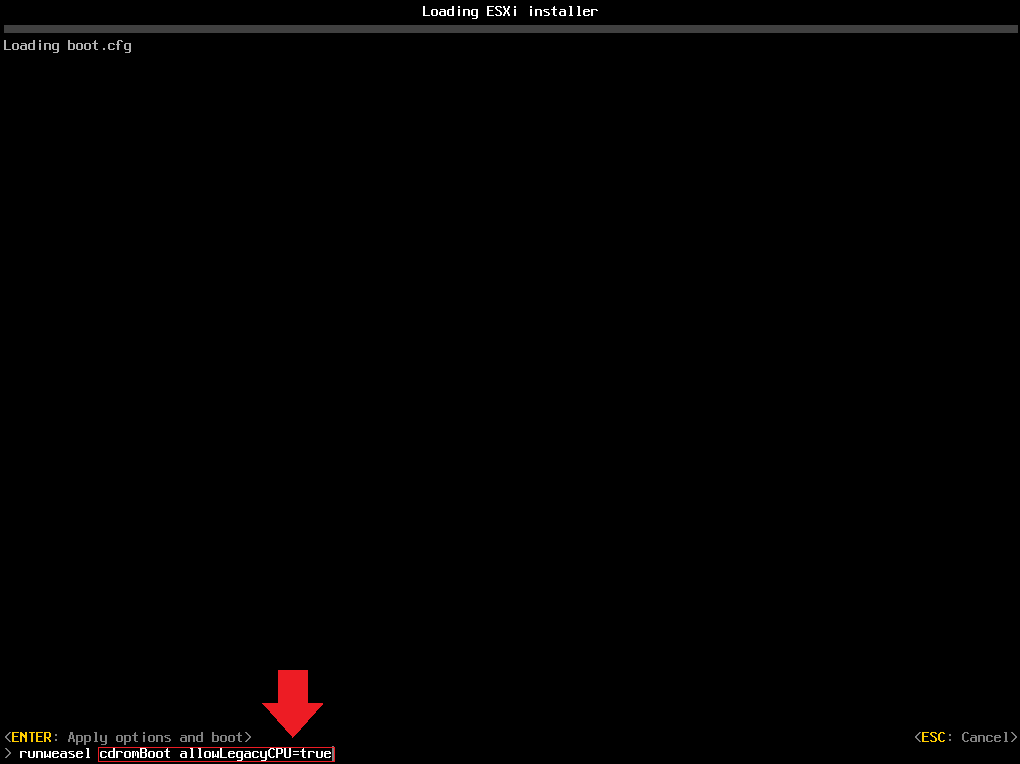
Immediately after selecting the ESXi 8 installer, press
Shift+O. Then type the following command:
allowLegacyCPU=true
And press Enter. Make sure there is a space between cdromBoot and allowLegacyCPU=True
- After a couple of minutes, you will see the following screen. Press
Enterto continue.
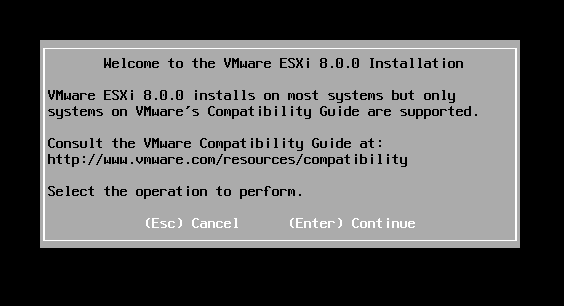
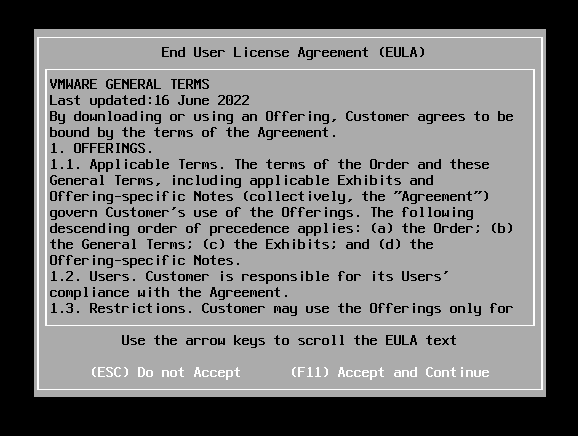
- Accept and Continue by pressing
F11.
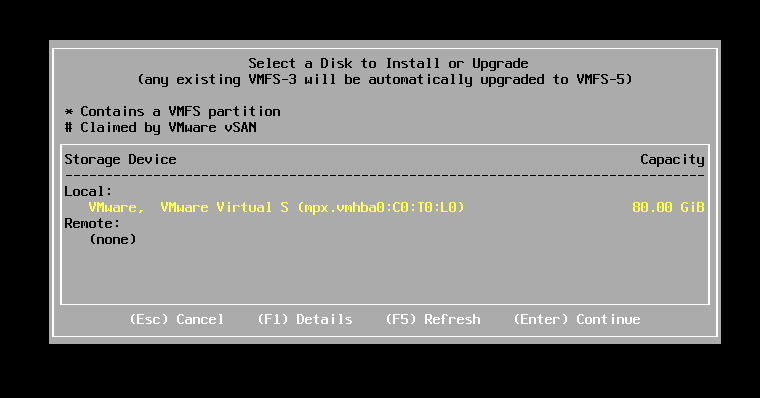
- Select the disk where ESXi will be installed and press
Enter.
- Select keyboard layout and press
Enter.

- Type the root password you want to use and press
Enter.

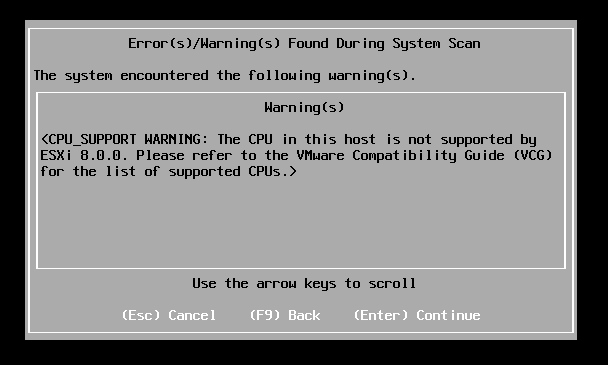
- Now you will see a CPU compatibility error but you are able to continue installation. Press
Enter.
- Confirm the installation by pressing
F11.

- Installation in progress.

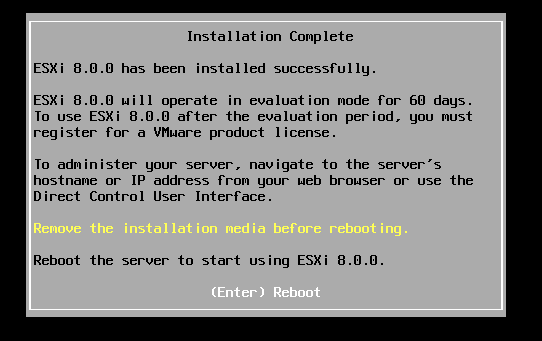
- Installation completed. Remove ISO and press
Enterto reboot.
ESXi first configuration
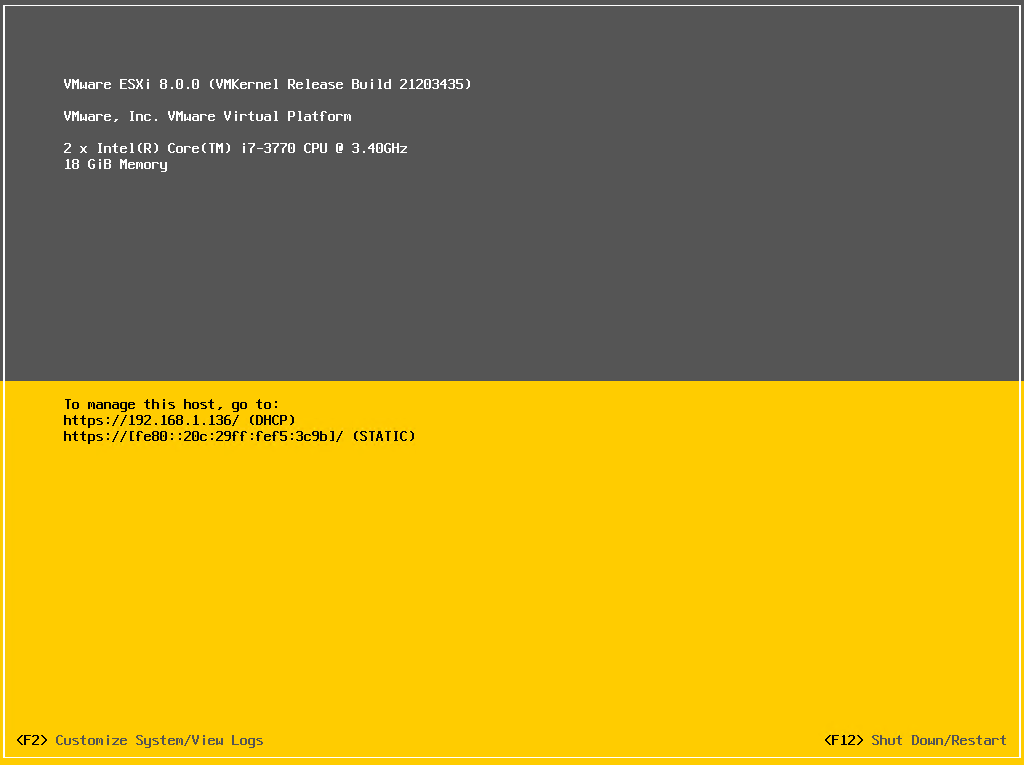
- Once ESXi is up after installation, it is time for the first configuration. Press
F2.
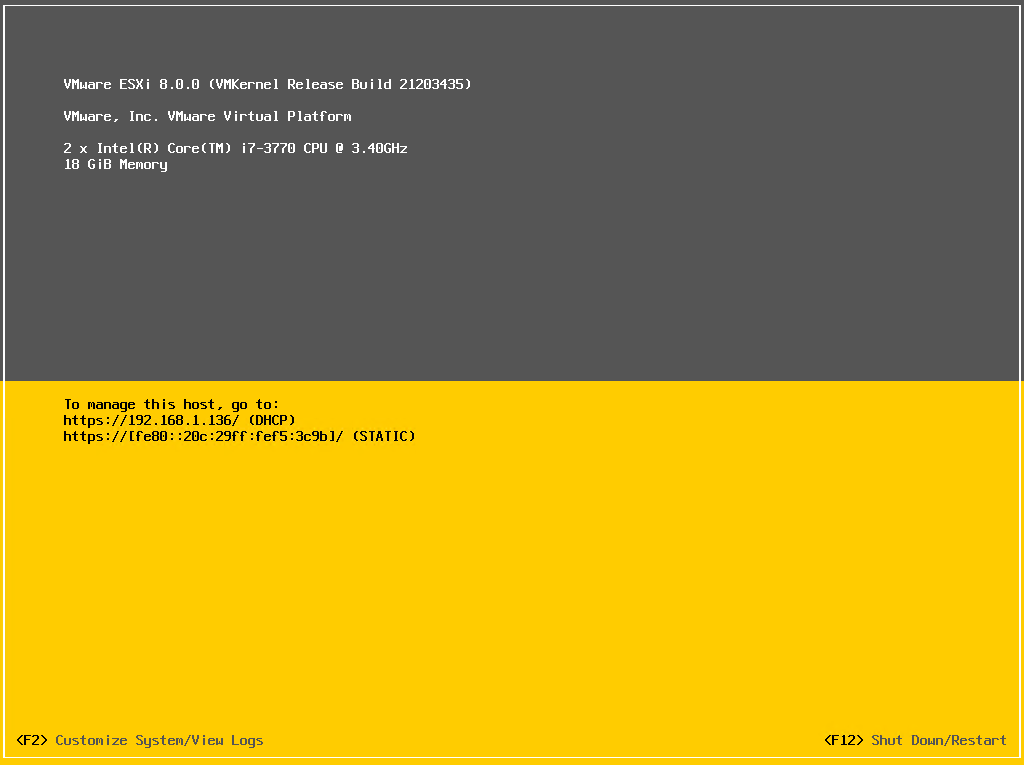
- Type the root password and press
Enter.
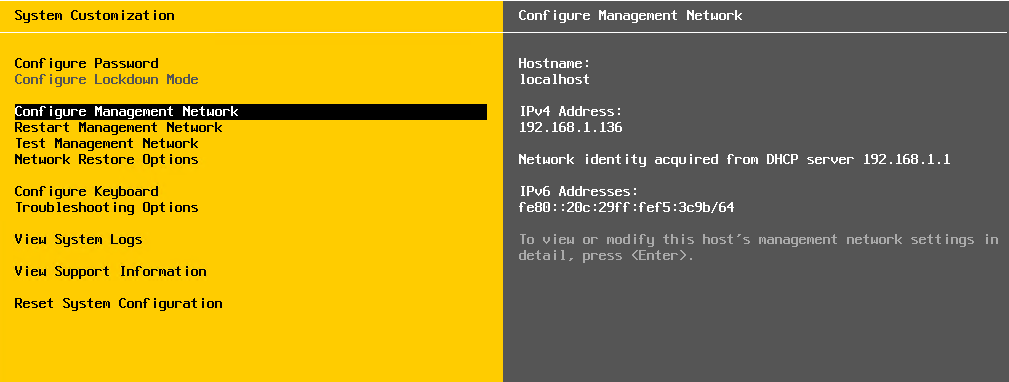
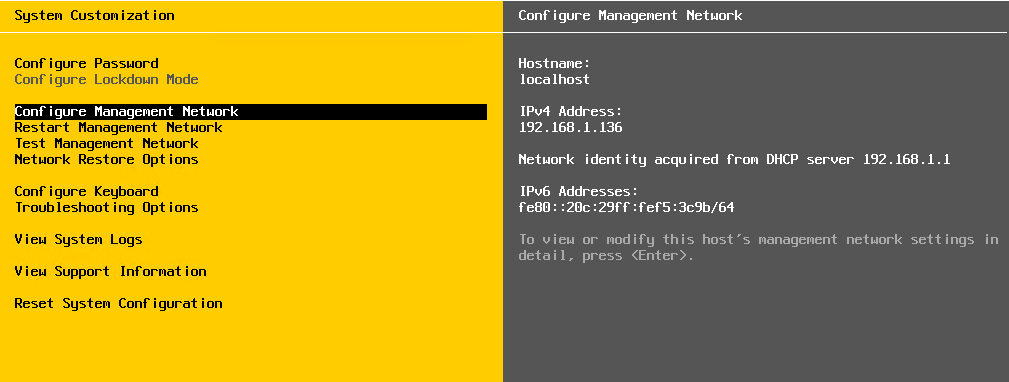
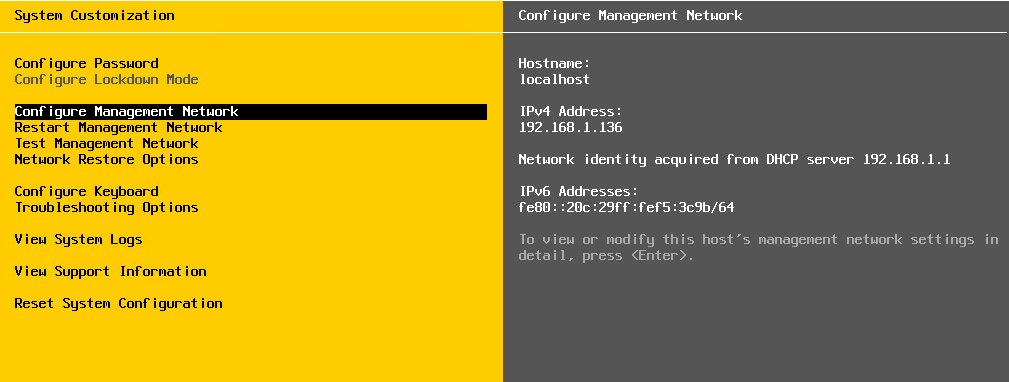
- Using arrow keys, go to Configure Management Network and press
Enter.
- Select your network adapter and modify VLAN ID if needed. In my home lab, this is not necessary, so I will go to IPv4 configuration.
- Select Static IP by using arrow keys and Space. Type your ESXi IP details. Once done, confirm by pressing
Enter.
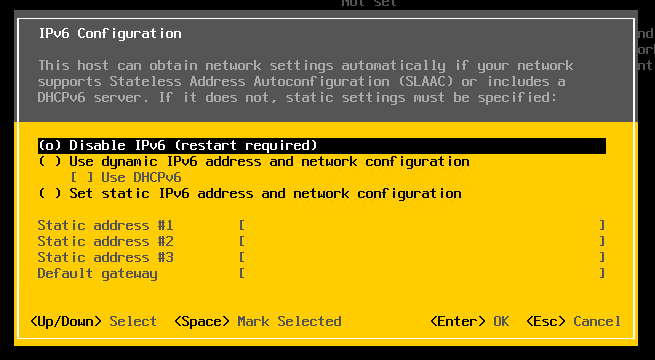
- In the IPv6 section, I will disable IPv6 using arrow keys and Space. Press
Enteronce done.
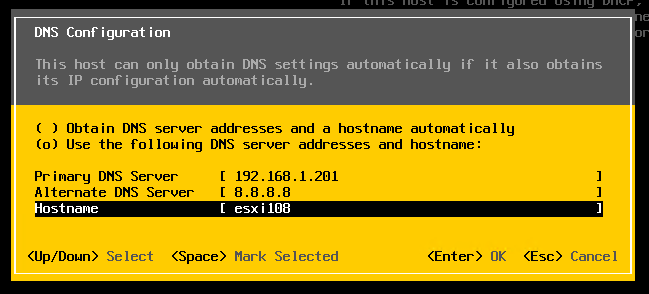
- In DNS section, type your Domain Controller IP and hostname. Make sure to create a DNS record with your ESXi on the Domain Controller.
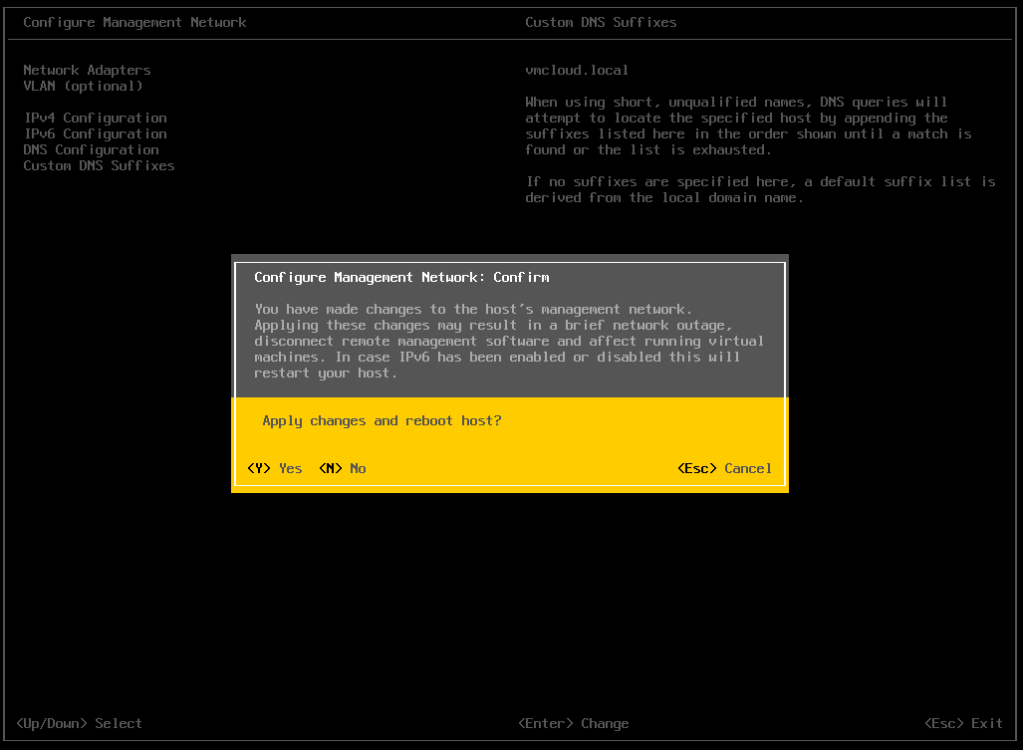
- Custom DNS suffixes you can type your domain. I will use my home lab domain vmcloud.local.

- Finally, on the main screen of Configure Management Network, press Esc and Y to confirm the host reboot and apply changes.
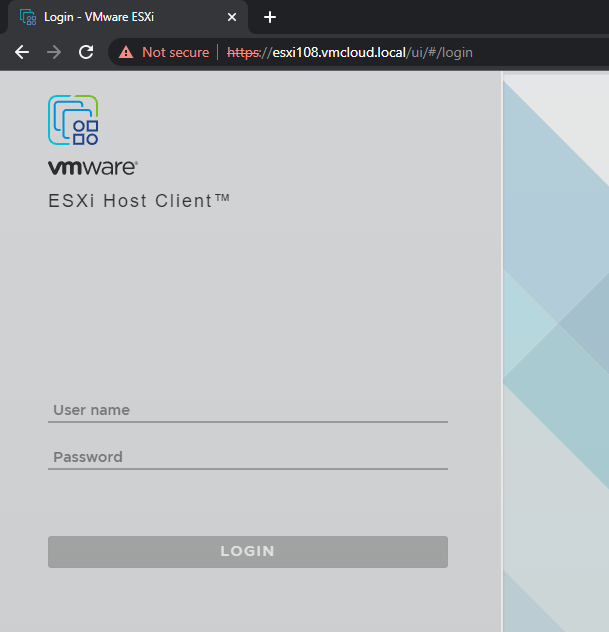
- When the host is up, you can access the web interface by going to:
https://IP_or_hostname_of_ESXi
If you want to use the hostname, make sure you have added your ESXi IP to the hosts file!
Use root credentials.
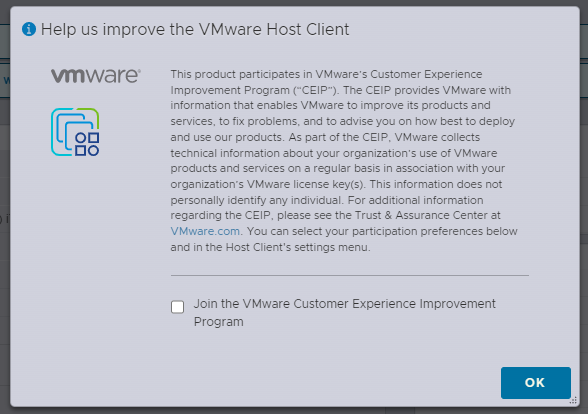
- Join CEIP if you want.
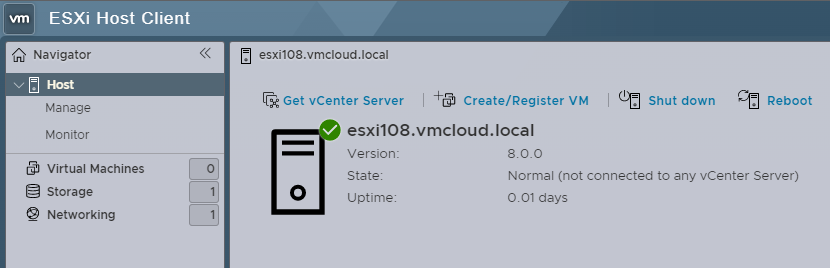
Your ESXi 8.0 is ready to use!
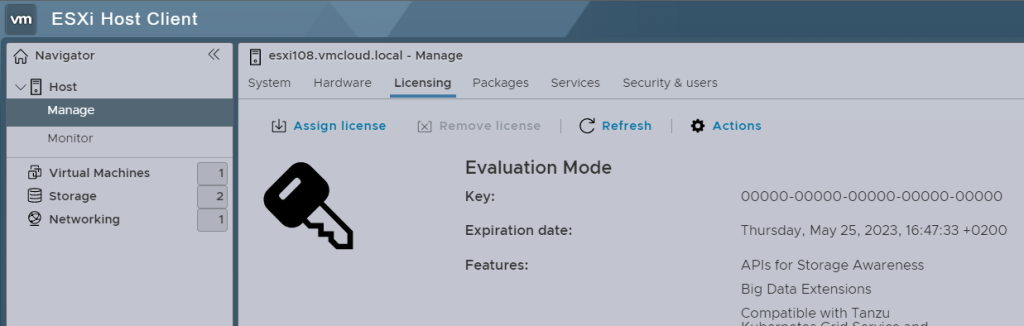
If you want to deploy a new vCEnter Server 8.0 on this ESXi host, DO NOT apply your free license key.
Leave it in Evaluation Mode.
If the free license key is applied, vCEnter Server 8.0 deployment hangs on the Initialization phase.