How to reset a Windows 11
If your computer is slow or acting up, you can reset it to the default factory settings, and here's how on Windows 11.
HOW TO FACTORY RESET WINDOWS 11 PRESERVING FILES
To reset a Windows 11 laptop or desktop to its factory default settings without losing your files, use these steps:
- Open Settings.
- Click on System.
- Click the Recovery page on the right side.
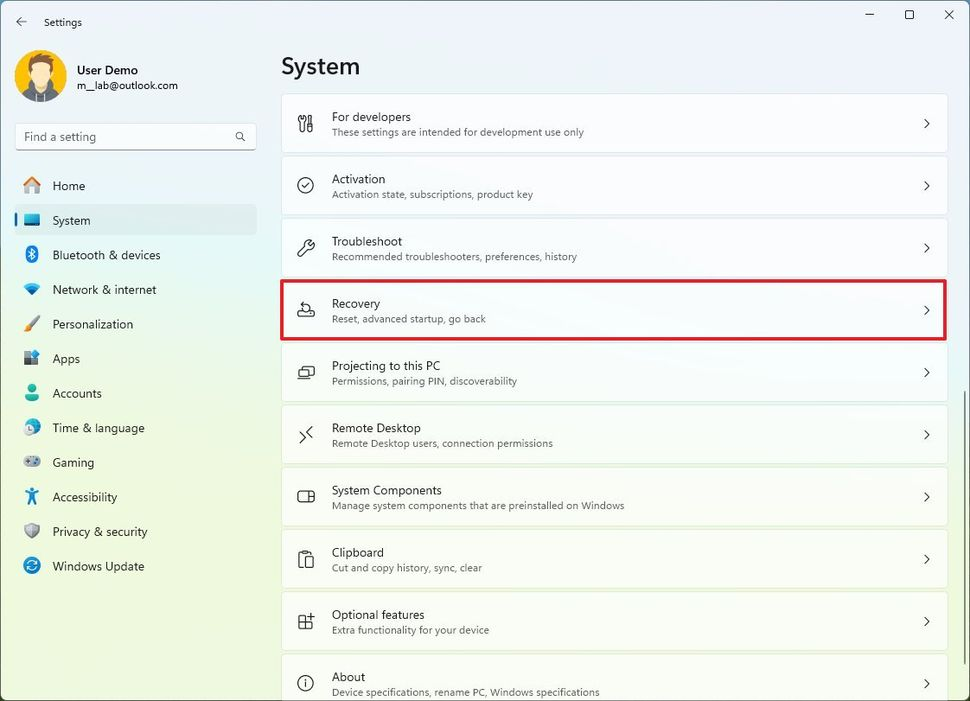
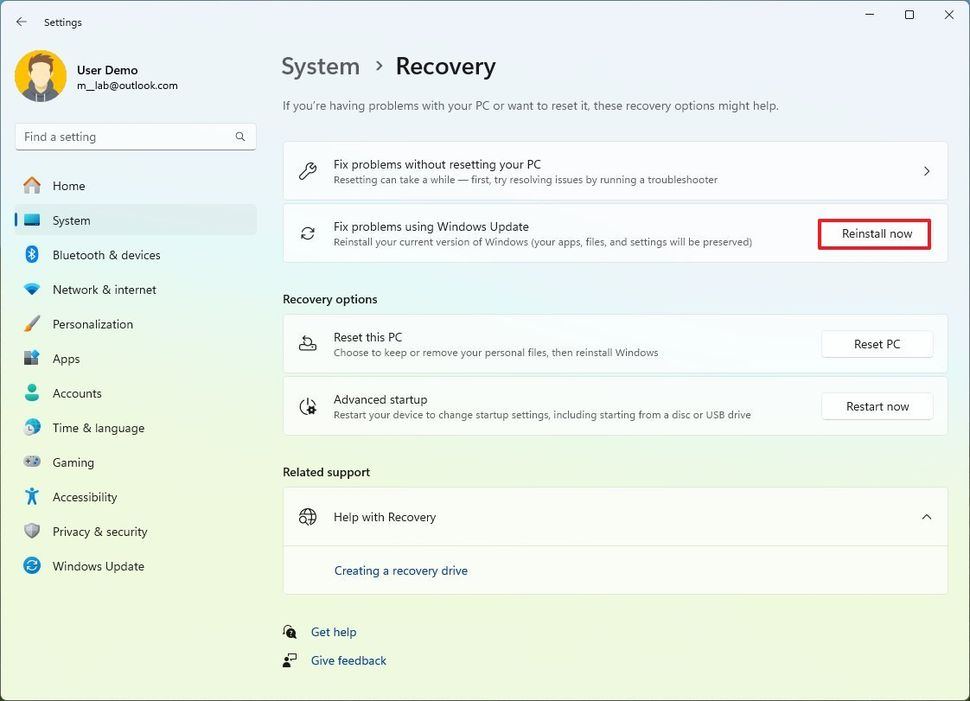
- Click the Reset PC button for the "Reset this PC" feature under the "Recovery options" section.
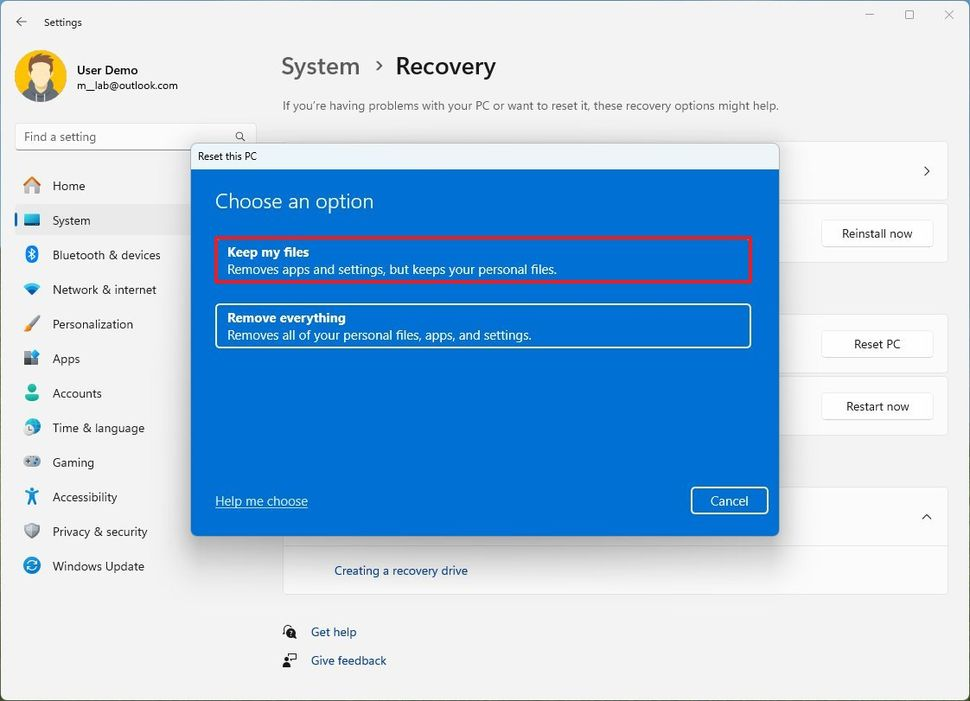
- Click the "Keep my files" option.
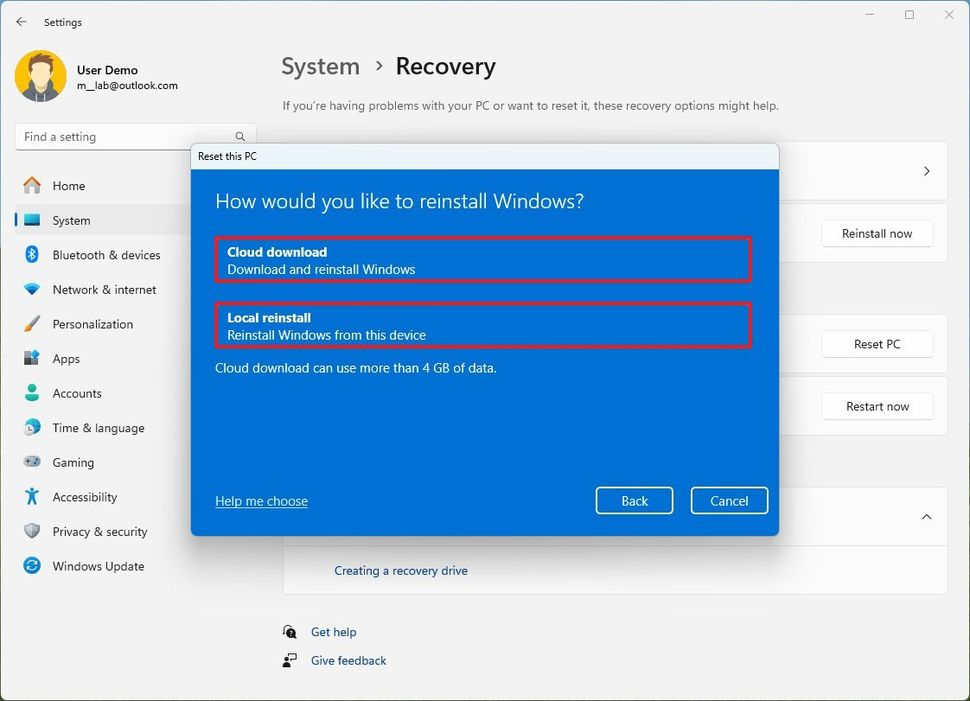
- Select the reset method:
- Cloud download: Downloads a fresh copy of the installation from the Microsoft servers and reinstalls Windows 11. However, this option will not restore the tools, apps, custom drivers, and configuration that came with the original image provided by the manufacturer.
- Local reinstall: Uses the files already available to reset the computer. This process will restore the factory drivers, settings, and tools if this is a branded device (such as Dell, ASUS, Lenovo, etc.).
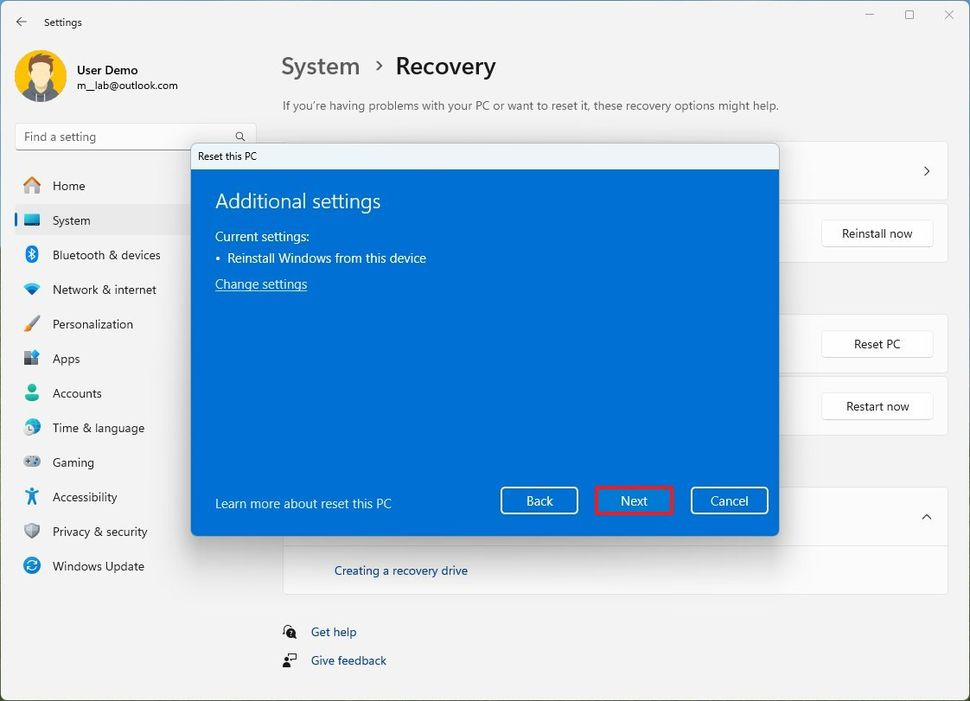
- Review the apps to reinstall after the reset to factory settings.
- Click the Next button.
- Click the Reset button.
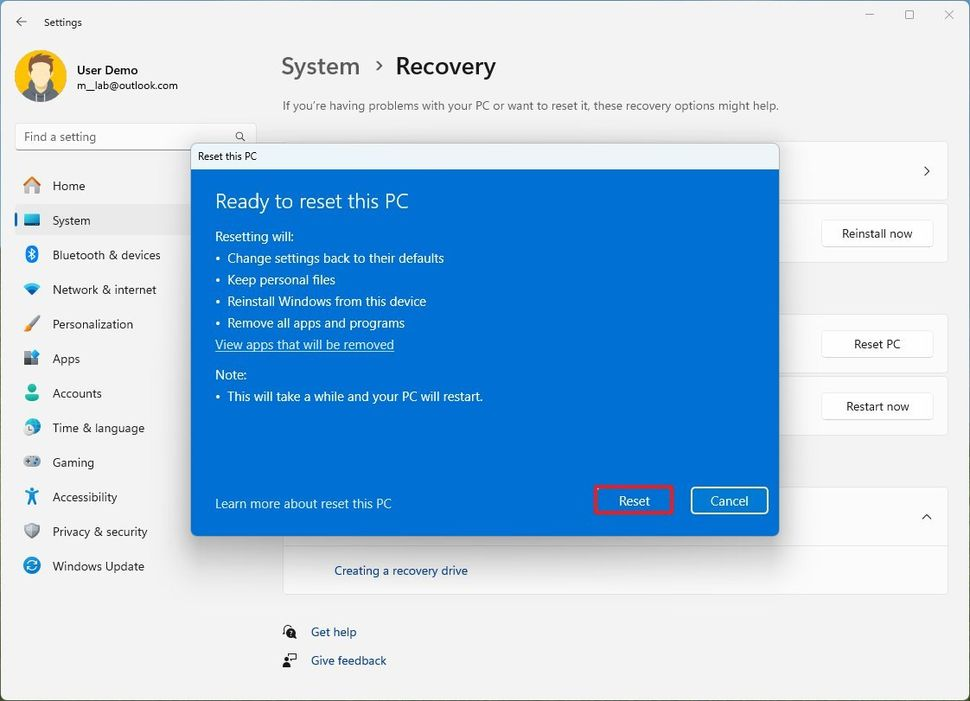
Once you complete the steps, the computer will reset to the factory settings, preserving your files.
After factory reset
After the reset, it's a good idea to check for updates to ensure the setup does not miss any security patches or drivers. Also, you may need to reinstall any of your previous applications as necessary.
Check for updates
To install updates for Windows 11, use these steps:
- Open Settings.
- Click on Windows Update.
- Click the "Check for updates" button.
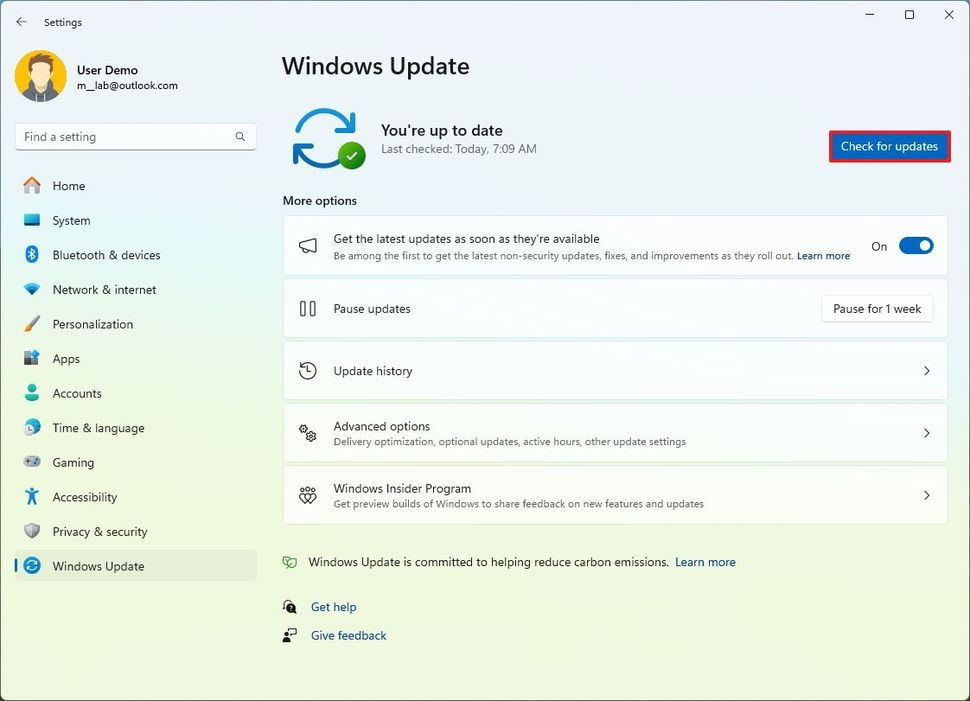
Once you complete the steps, Windows Update will download the latest patches and driver updates (if available).
Check for missing drivers
To check for missing drivers after completing the reset of Windows 11, use these steps:
- Open Start.
- Search for Device Manager and click the top result to open the app.
- Confirm that there's no branch called "Other devices," which usually lists devices without drivers.
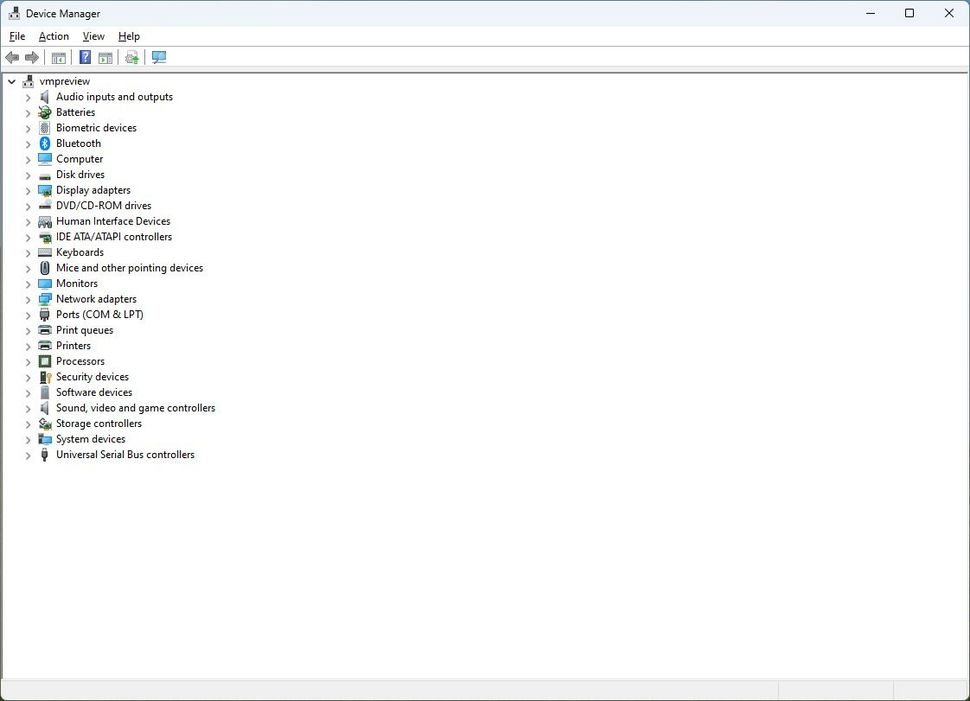
If you have one or more devices missing, check the computer manufacturer's support website to download and install the latest drivers available.
The last thing left to do is reinstall any previously installed app on your computer (if applicable).
HOW TO FACTORY RESET WINDOWS 11 USING REMOVE EVERYTHING OPTION
To use the reset feature removing everything on a computer that you use for working at home or gaming, use these steps:
- Open Settings.
- Click on System.
- Click the Recovery page on the right side.
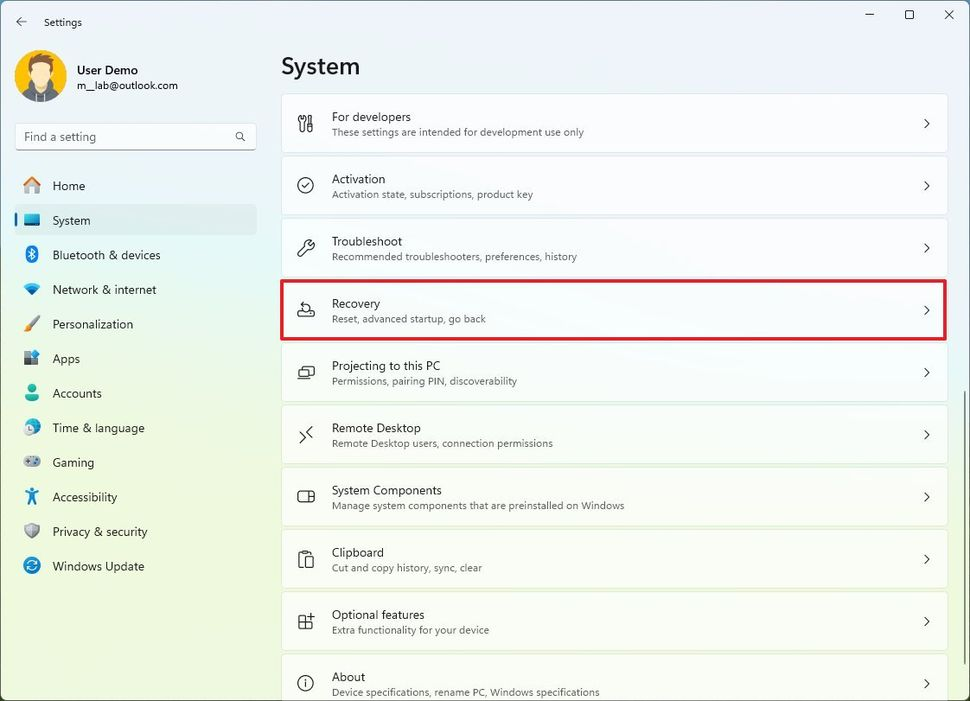
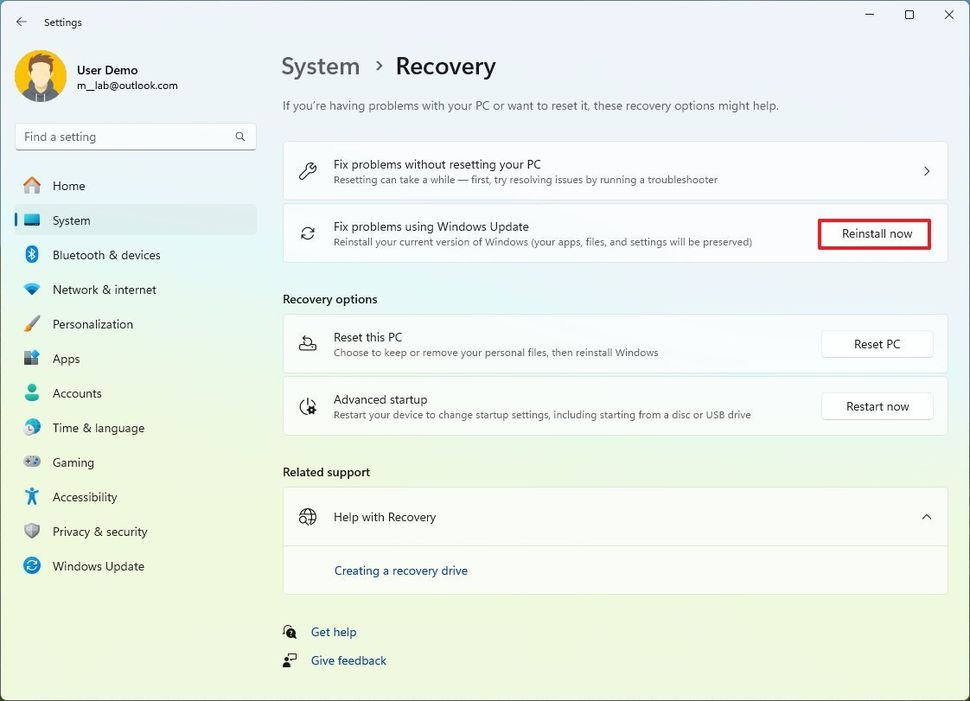
- Click the Reset PC button for the "Reset this PC" feature under the "Recovery options" section.
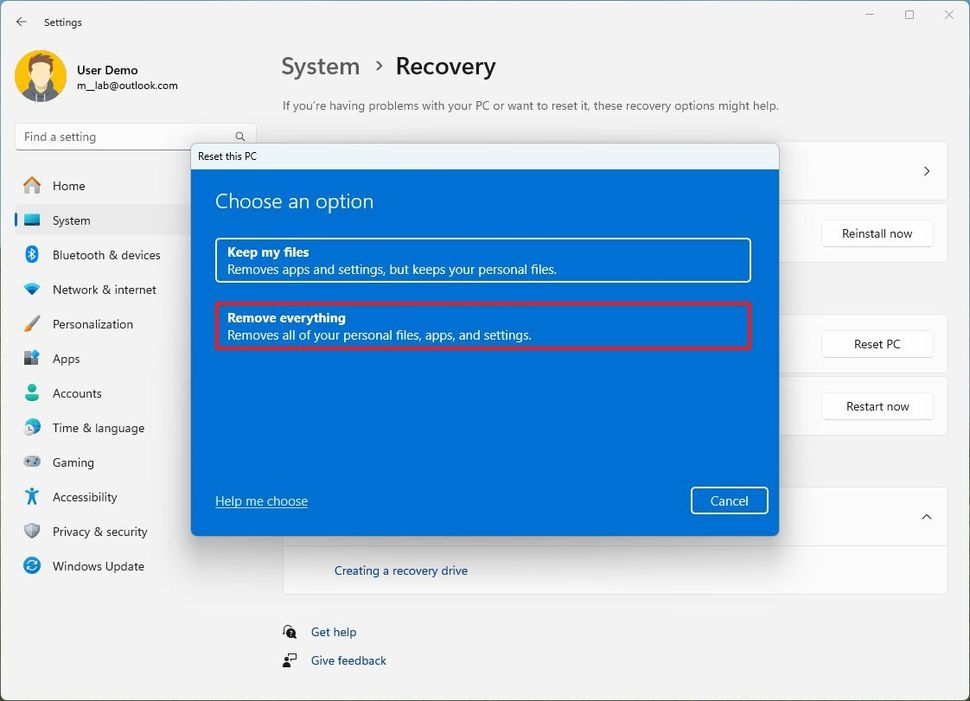
- Click the Remove everything option.
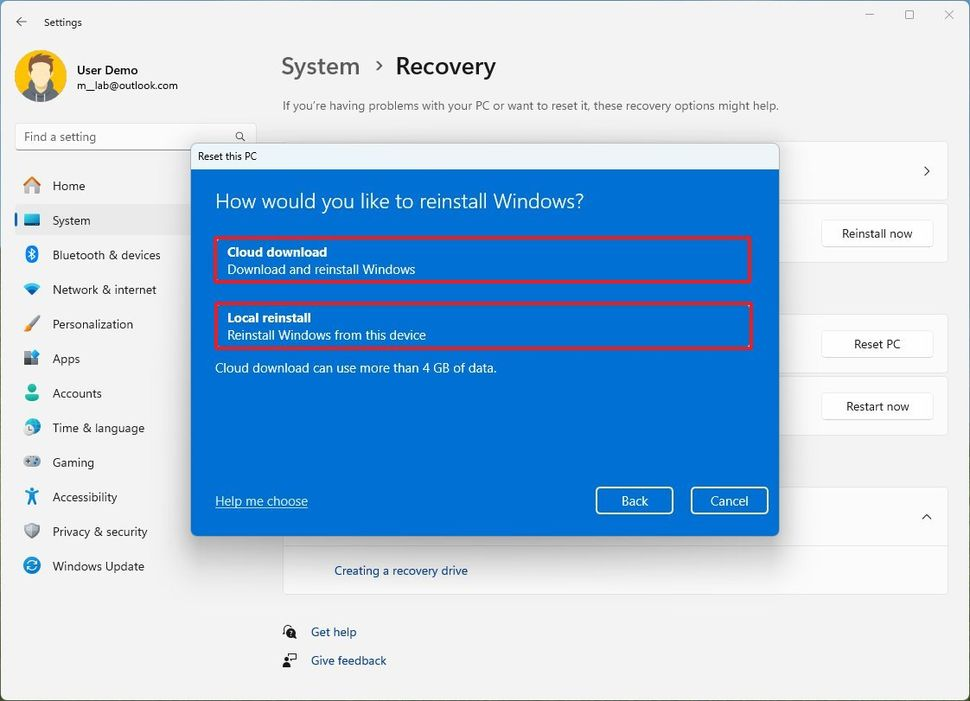
- Select the Cloud download or Local reinstall, depending on how you want to reset the system.
- (Optional) Click the Change settings option.
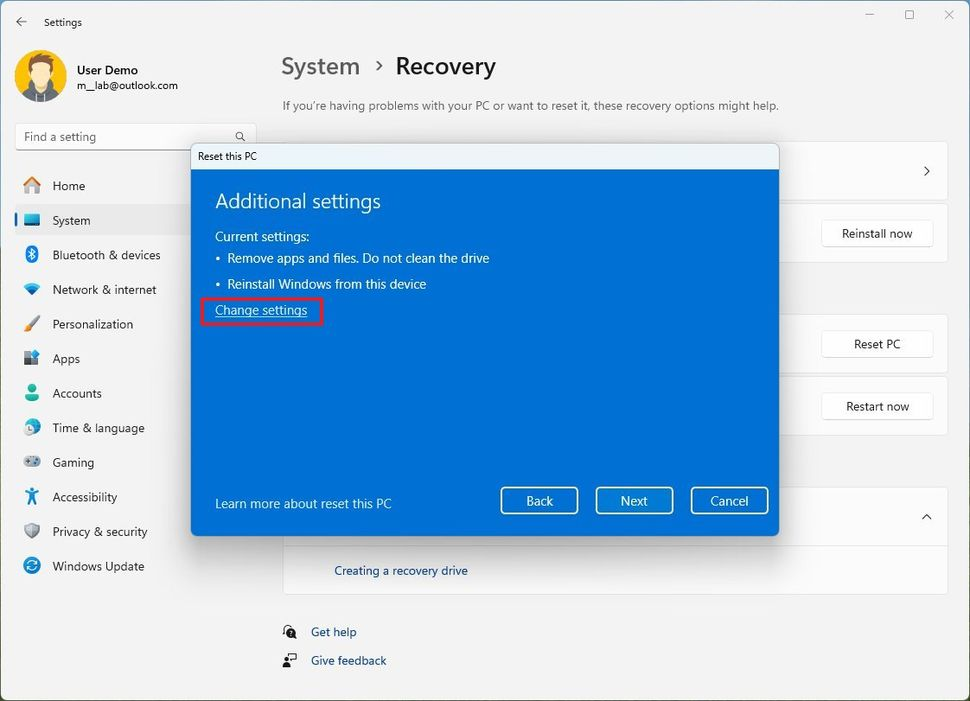
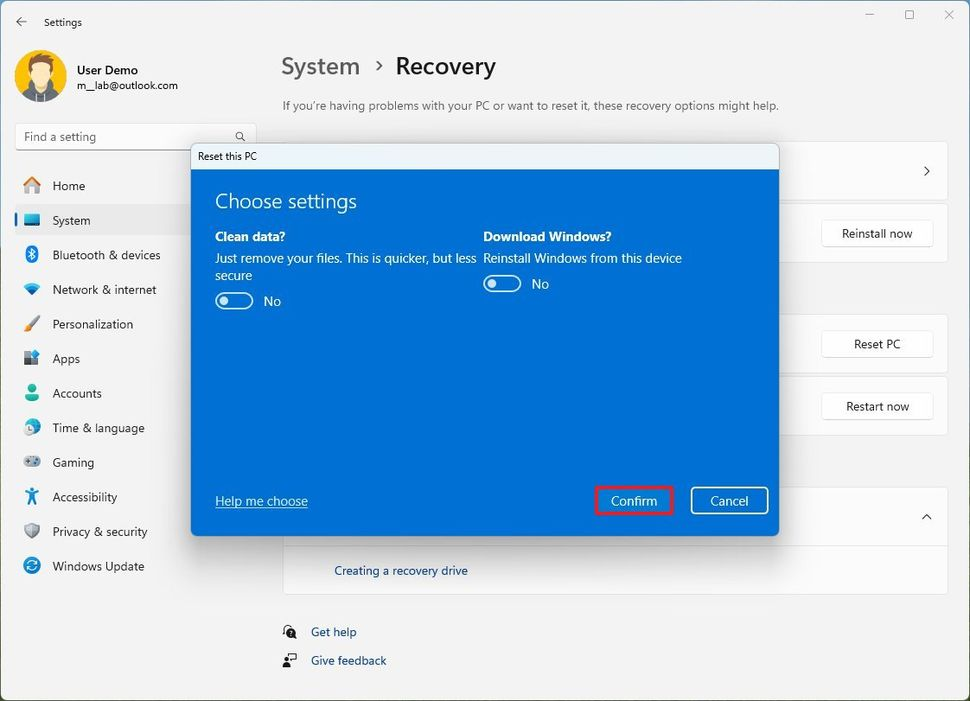
- Turn on the "Data erasure toggle" switch.
Use this option to prepare the computer for sale. Otherwise, the default reset settings are recommended if you are trying to refresh the installation.
- Click the Confirm button.
- Review the apps to reinstall after the reset to factory settings.
- Click the Next button.
- Click the Reset button.
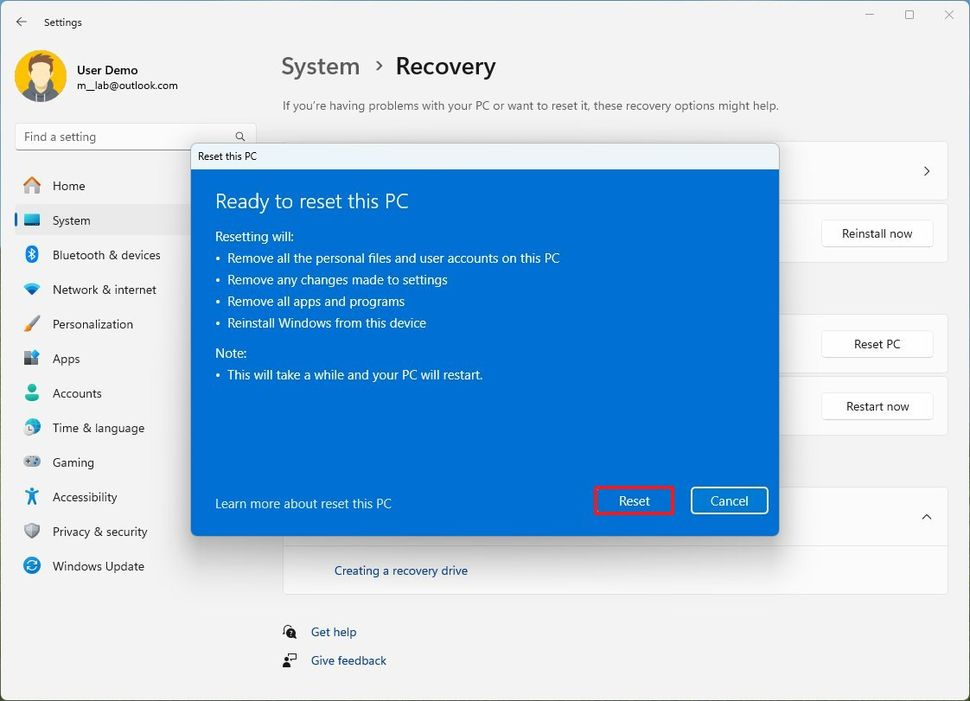
After you complete the steps, the process will erase the drives, depending on your configuration, and install a clean copy of Windows 11.
After factory reset
After the reset, it's a good idea to check for updates to ensure the setup does not miss any security patches or drivers. Also, you may need to reinstall any of your previous applications as necessary.
Check for updates
To install updates for Windows 11, use these steps:
- Open Settings.
- Click on Windows Update.
- Click the "Check for updates" button.
Once you complete the steps, Windows Update will download the latest patches and driver updates (if available).
Check for missing drivers
To check for missing drivers after completing the reset of Windows 11, use these steps:
- Open Start.
- Search for Device Manager and click the top result to open the app.
- Confirm that there's no branch called "Other devices," which usually lists devices without drivers.
If you have one or more devices missing, check the computer manufacturer's support website to download and install the latest drivers available.
The last thing left to do is reinstall any previously installed app on your computer (if applicable).