Mac Device Repair
info
Note:
This guide applies when the Mac device is still operational with minor damage. For cases where the device is severely damaged and cannot be powered on, research is ongoing.
For some Mac devices that we need to bring OUTSIDE the company in order to get fixed, we NEED to follow the steps below so the repair staff can log in to the devices without using the user password.
Password for FileVault
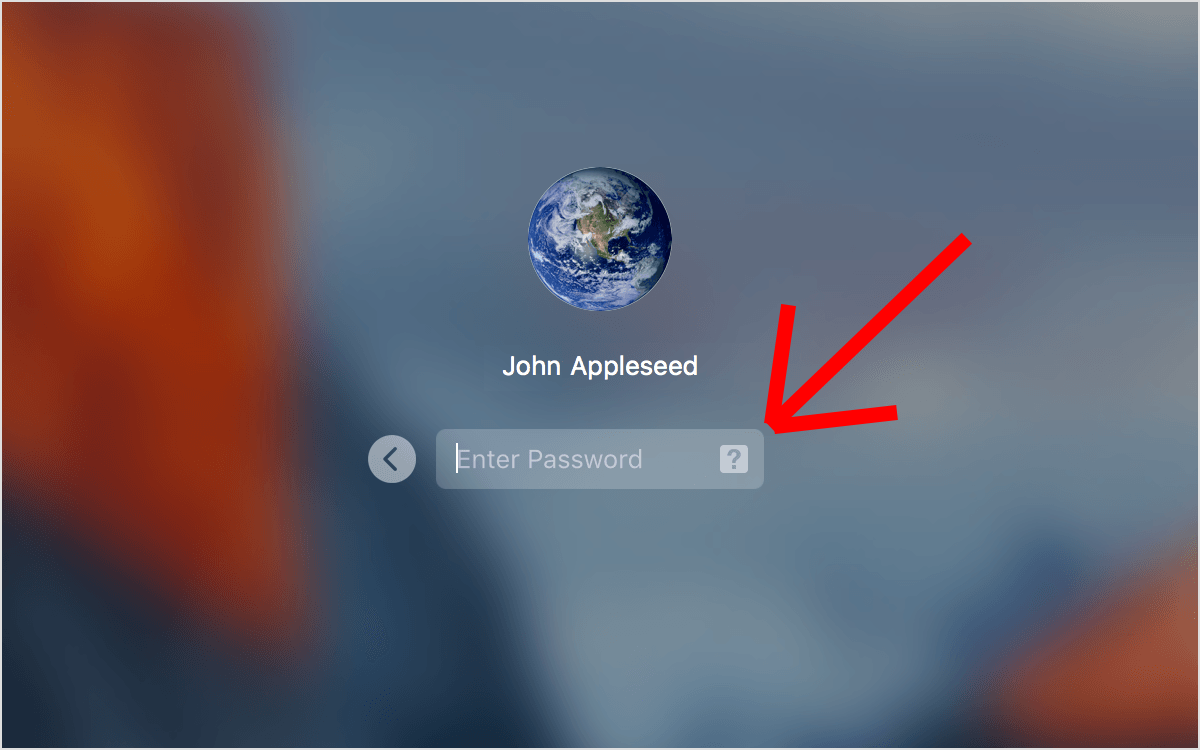
- At the FileVault screen, click the question mark, then choose the option there.
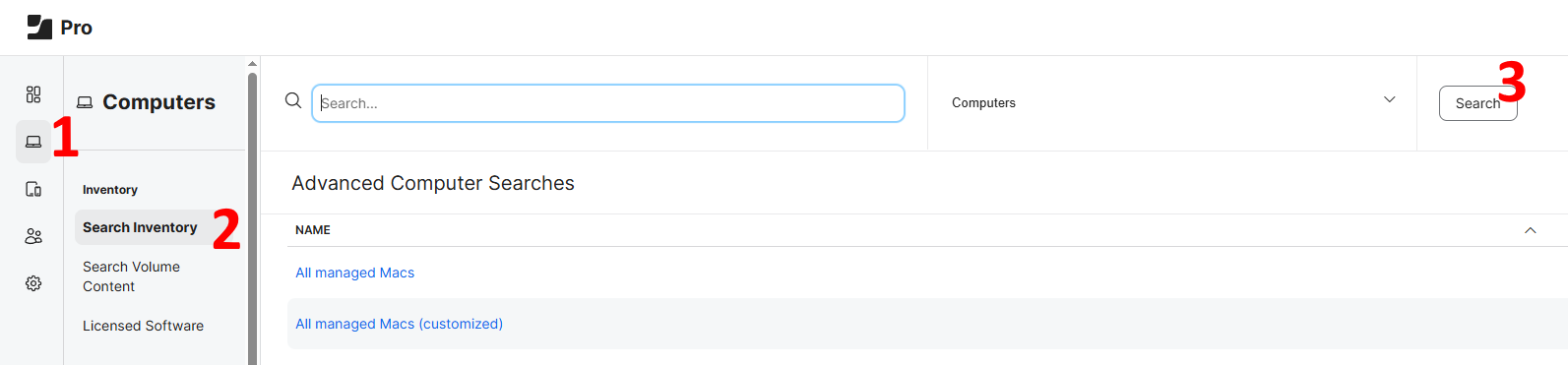
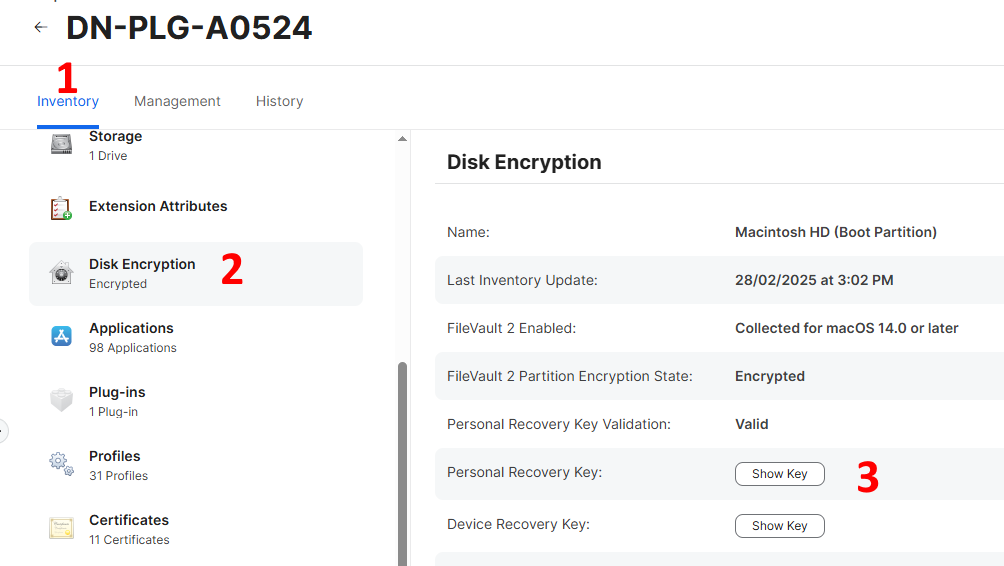
- Go to Jamf Pro, then search for the device that you want to unlock FileVault:
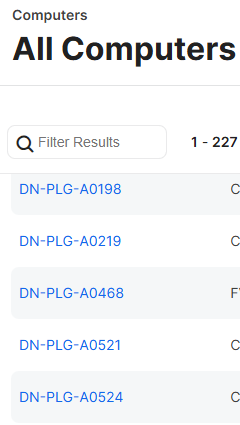
- Choose the device you want to unlock from the list:
- Show the key here:
Login to the device using Local Login
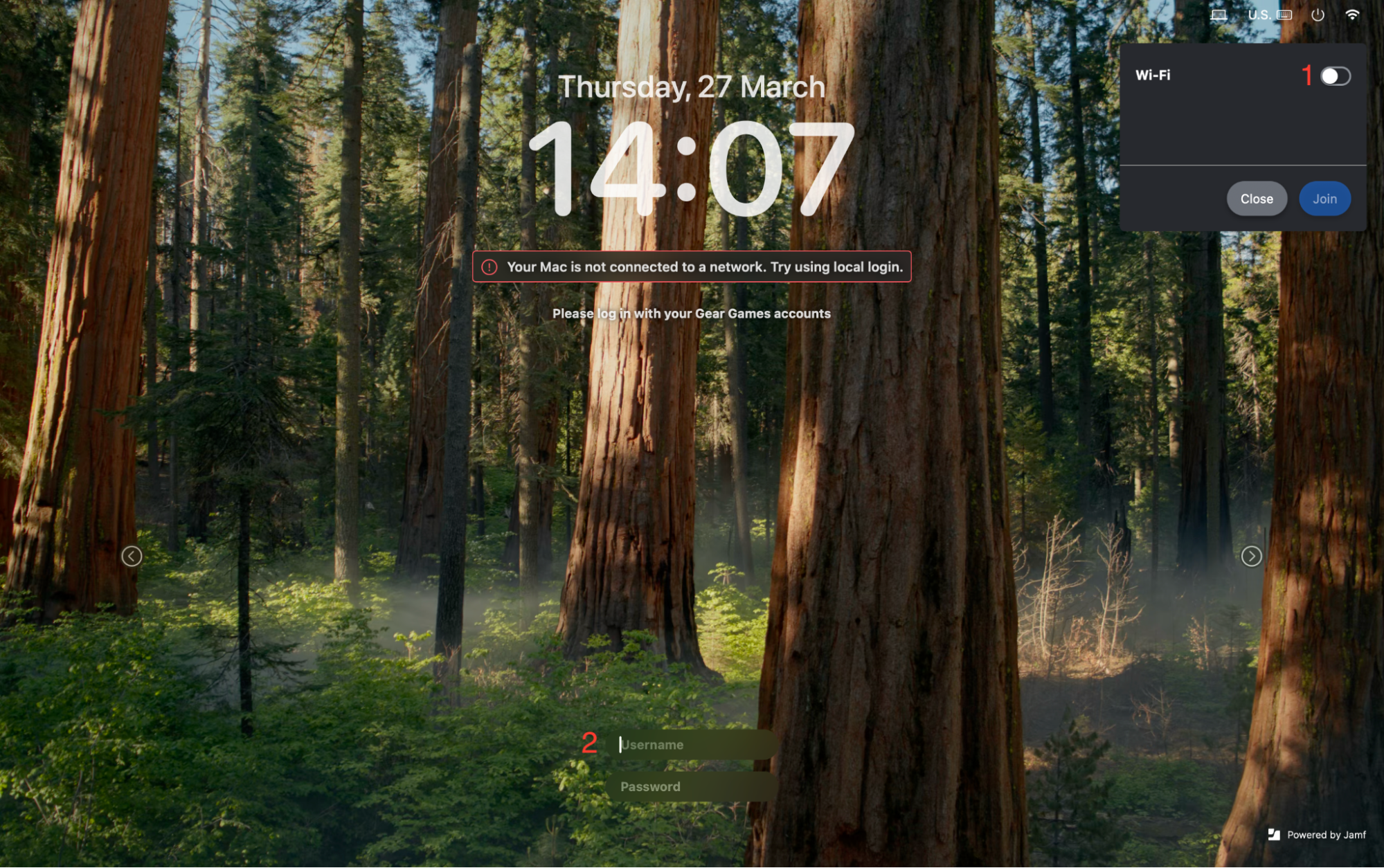
Instead of using Google accounts to log in as usual, you can use the Jamf Connect login window to log in without a network authentication.
- Disconnect the device from the network.
- On the login screen, click Local Login at the bottom center.
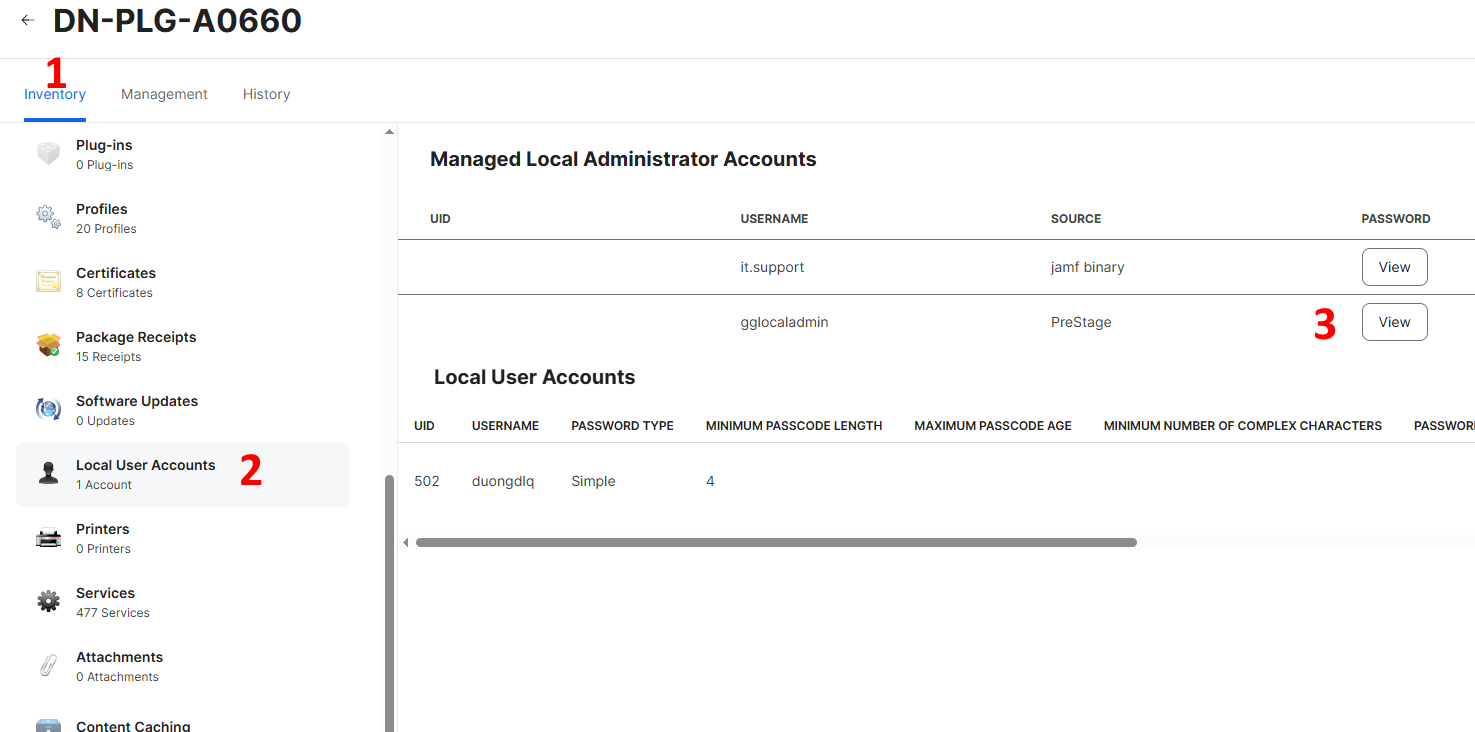
- Log in using the local account:
gglocaladmin(for PreStage devices)it.support(for other devices)
Create a New Standard Local Account
- After accessing gglocaladmin (for PreStage devices) or it.support (for other devices), go to Settings and click on Users & Groups to add a user.
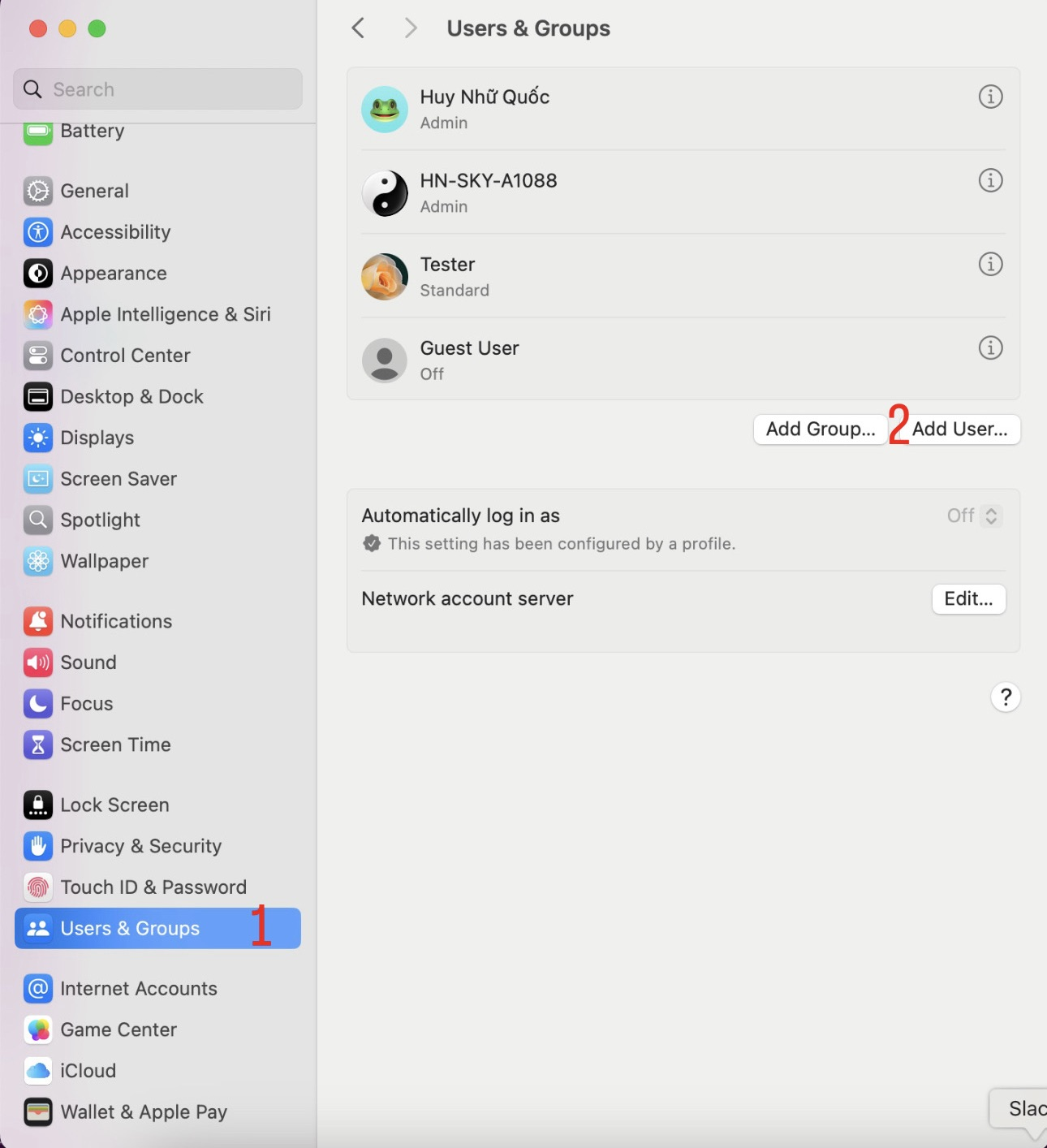
- After creating the new user, Logout or Reset of the admin account and turn off the Wi-Fi to use the newly created user.