Turn Off FileVault
Instructions for Turning Off FileVault
Step 1: Ensure the Mac User Has a Personal Recovery Key in JAMF Pro
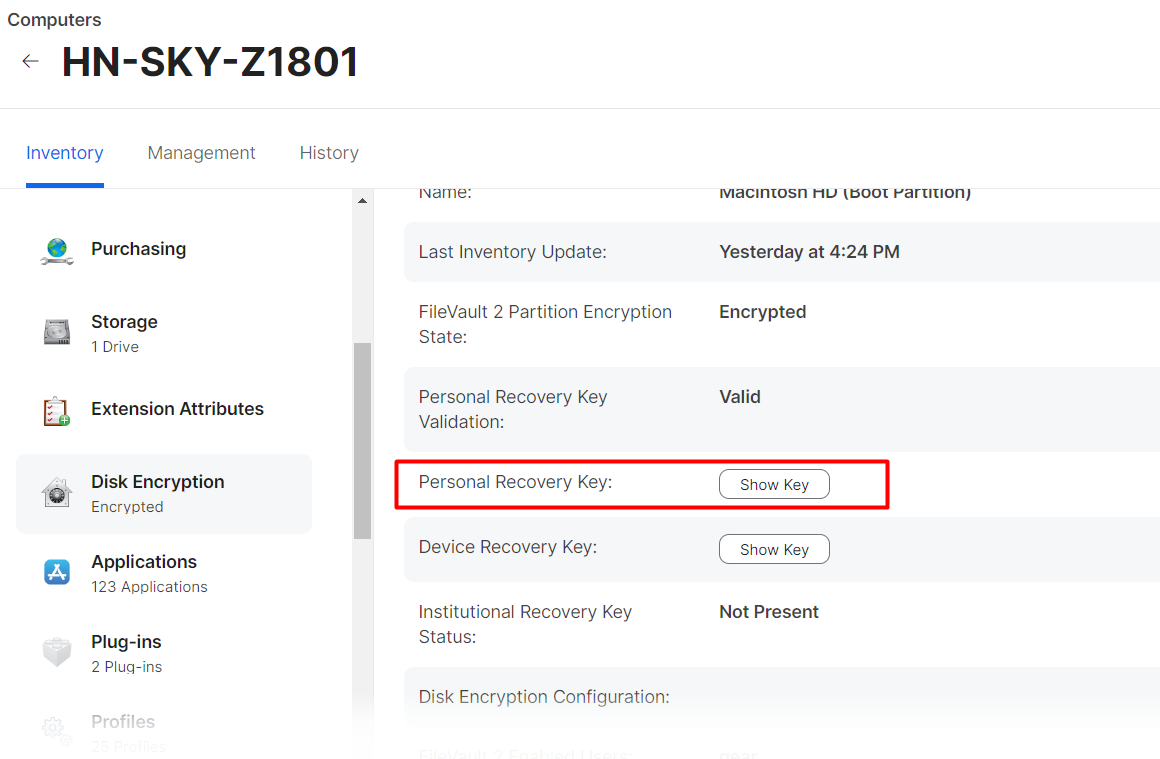
- Search for the computer name in the Inventory Menu. Example: HN-SKY-Z1801.
- In the Disk Encryption section, check if the Personal Recovery Key is active and if the "Show Key" button is available.
Step 2: Boot to Recovery Mode on Mac
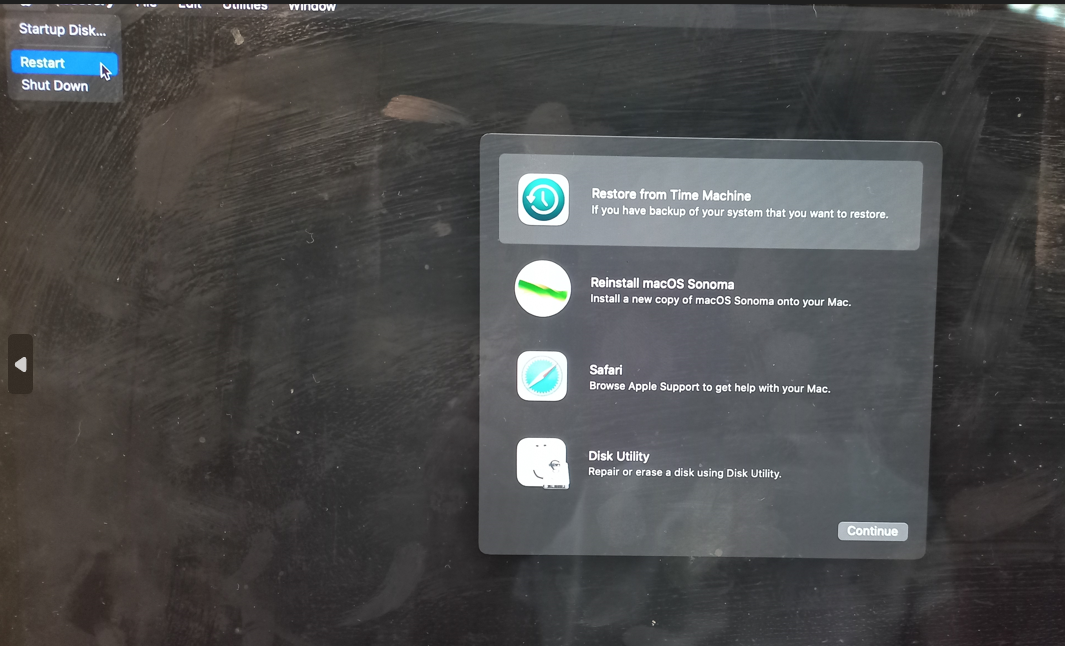
- Boot into the appropriate recovery mode based on the Mac model. See the suitable boot recovery mode for each Mac type.
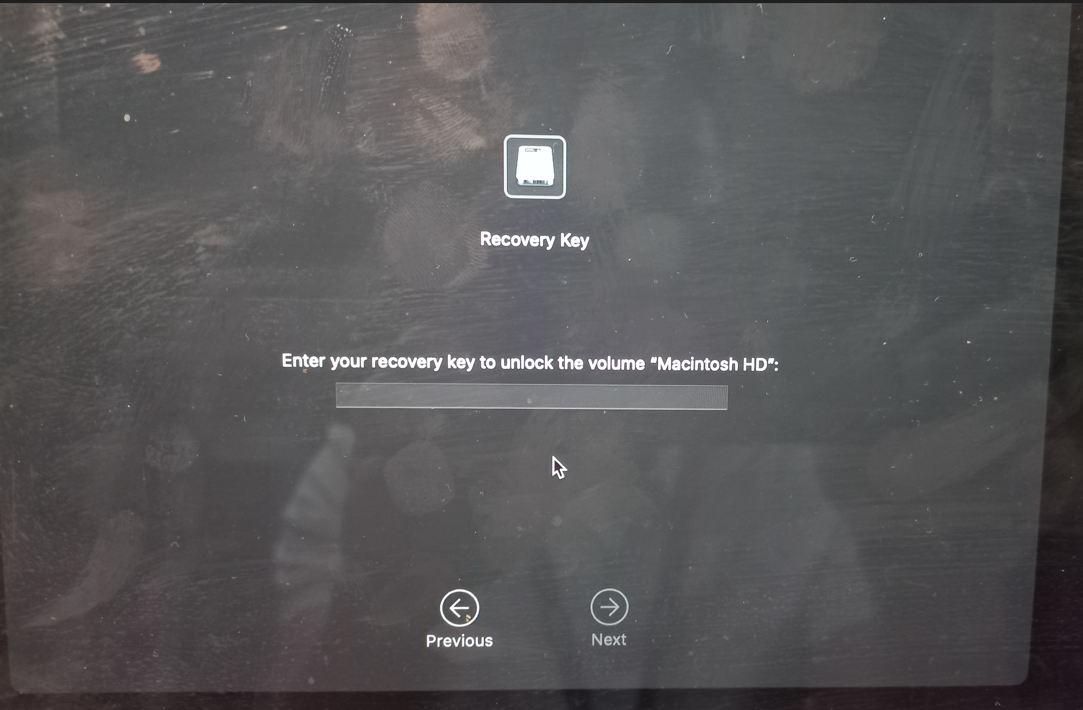
- Input the Recovery Key and then press Next.
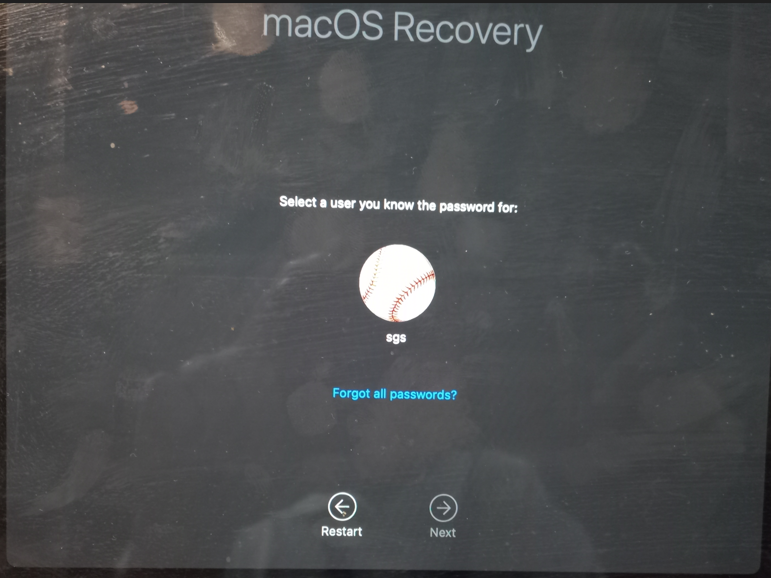
- Choose Forgot all passwords, then press Reset Password.
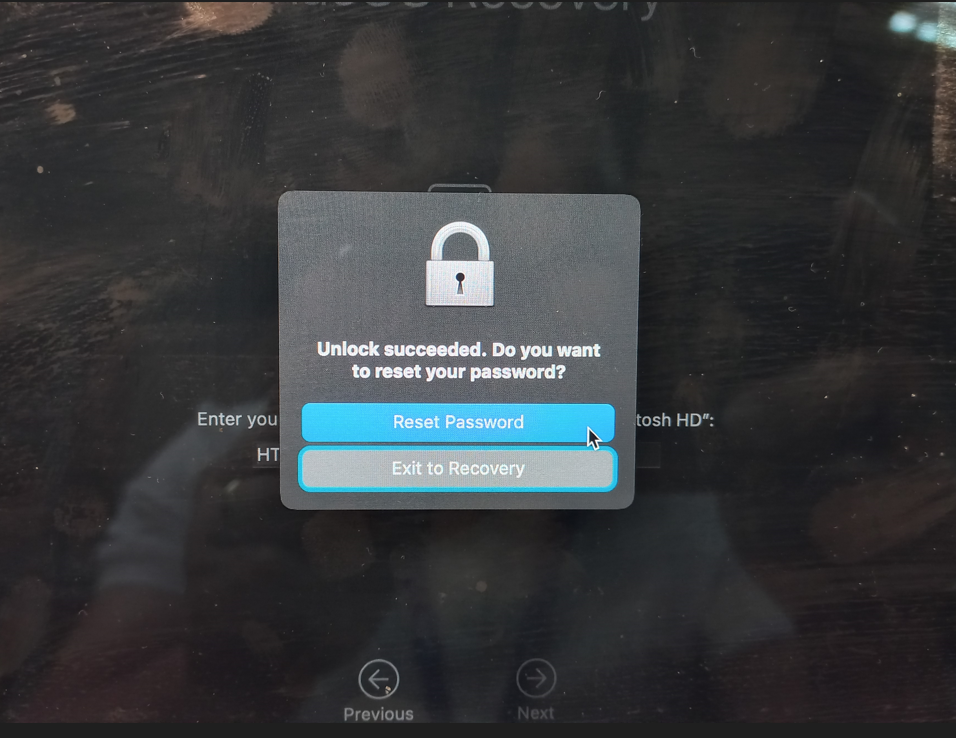
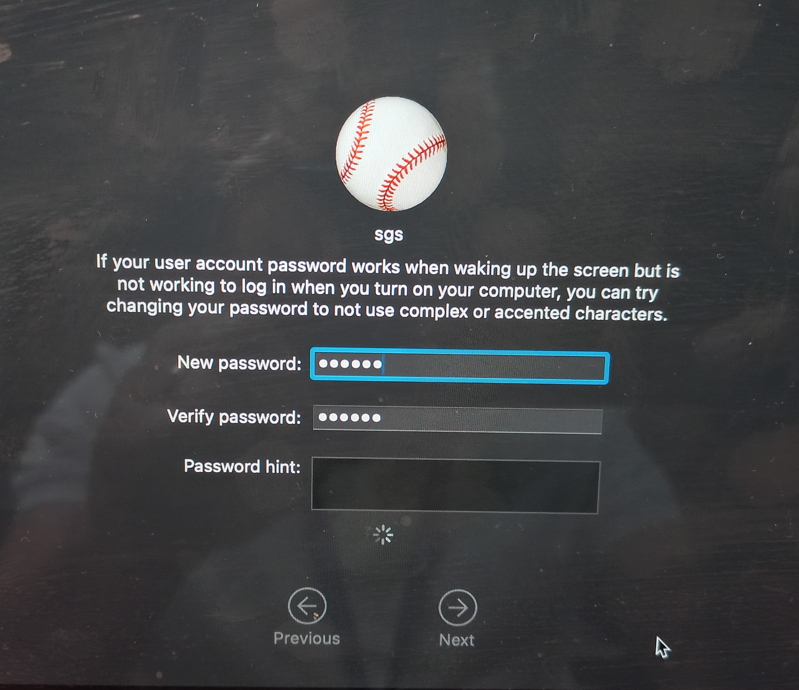
- Type a new password for replacement.
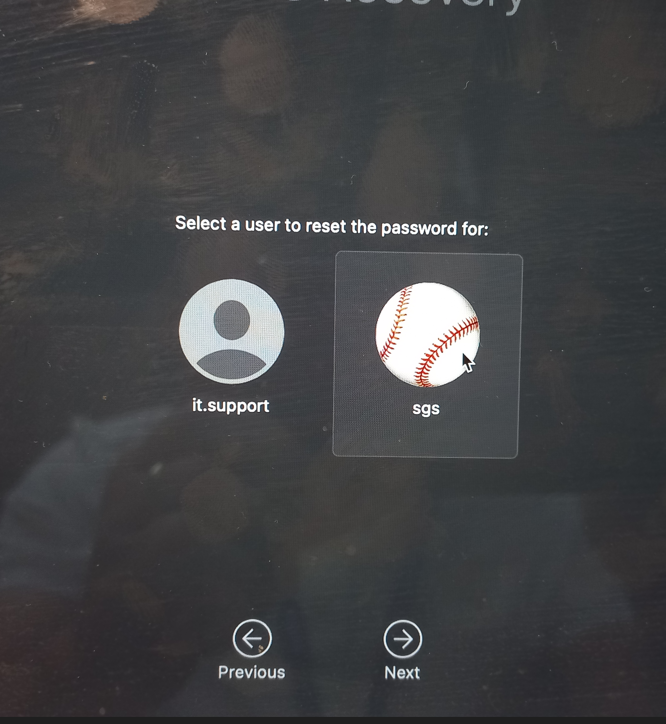
note
If your Mac has more than one local account, please select the account for which you want to reset the password.
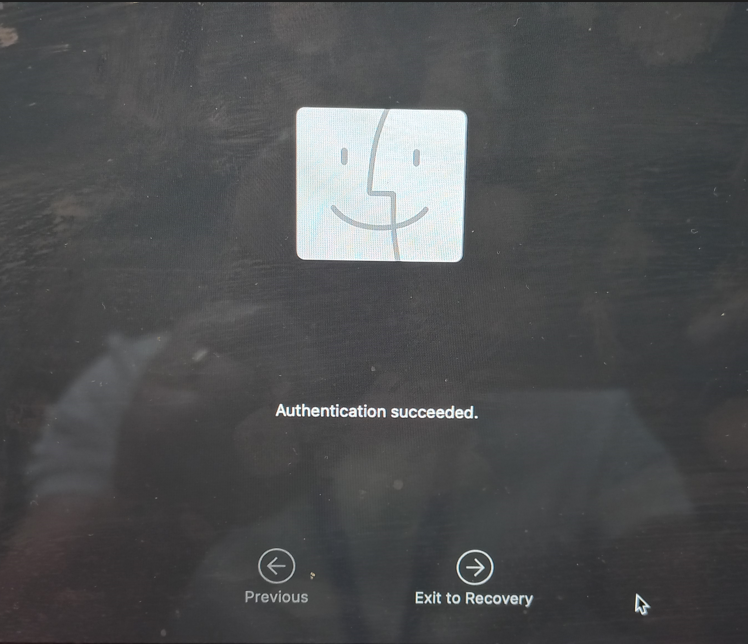
Step 3: Exit Recovery Mode and Re-Login with the New Password
- Exit Recovery Mode.
- Log in with the new password.
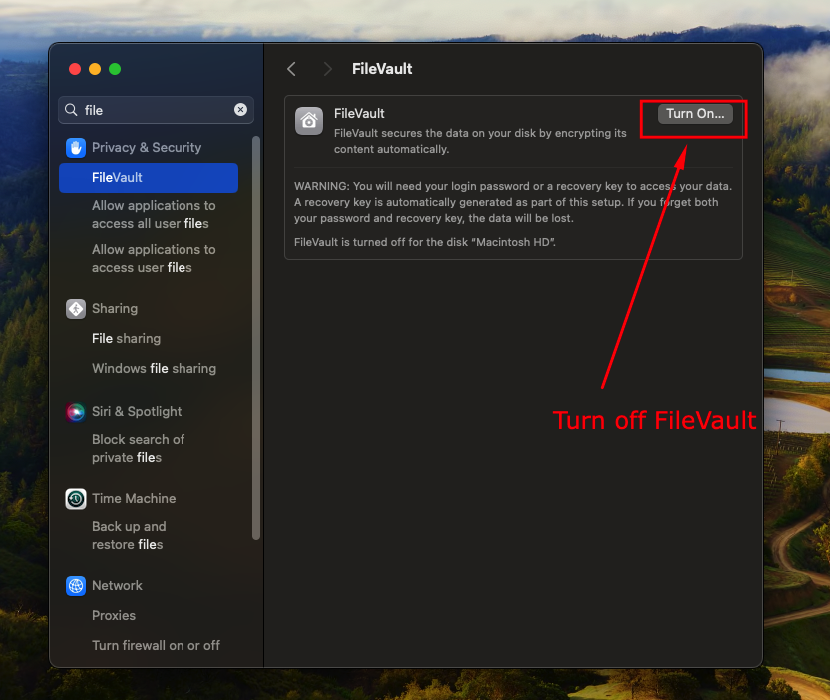
Step 4: Turn Off FileVault
- After logging in successfully, manually turn off FileVault.
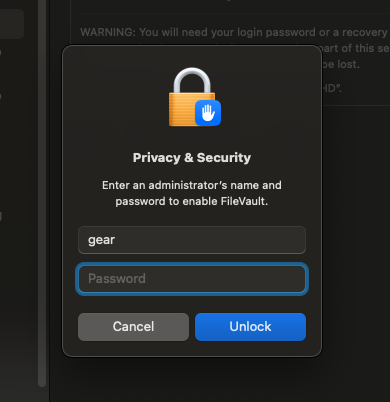
- The system will require you to authenticate with the new password.
Step 5: Remove JAMF
- Open Terminal.
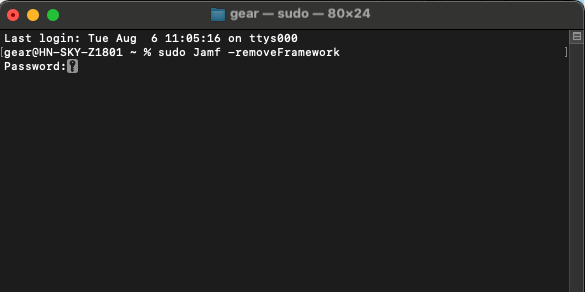
- Type the following command to remove all settings and profiles:
sudo jamf -removeFramework - Confirm with the admin password. After that, all MDM profiles will be automatically removed from your Mac.